
Force Excel to Save Before ClosingNever Lose Work Again with This VBA Macro
Excel's built-in "Do you want to save?" prompt is easy to dismiss accidentally. This VBA macro uses the Workbook_BeforeClose event to intercept every close attempt and force the user to consciously choose — save and close, or stay open.
ACA | FMVA® | 19 Years in Finance
Why Force-Saving Beats Relying on Excel's Warning
Excel does warn you when you try to close an unsaved workbook — but that warning is a three-button dialog that many users dismiss out of habit. One accidental click on Don't Save and hours of work are gone, with no undo available.
This is a real problem when the workbook is shared, when data entry staff are using it, or when sensitive financial figures need to be preserved every session. The solution is to replace Excel's vague prompt with a macro-driven confirmation — one that saves the file on the user's behalf when they agree to close.
🎯The Core Idea
The Workbook_BeforeCloseevent fires before Excel does anything else when a close is triggered. By hooking into this event, you can present your own prompt and then either force-save the file or cancel the close entirely — before the user even sees Excel's default dialog.
The Complete VBA Code
Short, readable, and ready to paste. Here is the full macro:
Private Sub Workbook_BeforeClose(Cancel As Boolean)

    'Step 1: Show a Save/Cancel prompt and evaluate the response
    Select Case MsgBox("Save and close?", vbOKCancel)

        'Step 2: User clicked Cancel — abort the close
        Case Is = vbCancel
            Cancel = True

        'Step 3: User clicked OK — save the workbook and let it close
        Case Is = vbOK
            ThisWorkbook.Save

    'Step 4: Close the Select Case block
    End Select

End Sub
⚠️ This Code Goes in ThisWorkbook — Not a Module
The Workbook_BeforeClose event only fires when the code is inside the ThisWorkbook object in the VBA Editor. If you paste it into a standard Module it will never run automatically. See Section 4 for exact placement instructions.
How It Works — Step by Step
Each part of the macro plays a specific role. Here's what happens the moment a user tries to close the workbook:
BeforeClose event fires
Any close trigger — the X button, File → Close, or ALT+F4 — immediately runs this procedure before Excel does anything else.
A custom prompt appears
MsgBox("Save and close?", vbOKCancel) displays a dialog with OK and Cancel buttons. The vbOKCancel constant controls which buttons appear. MsgBox returns a numeric value depending on which button the user clicks.
Select Case evaluates the response
The Select Case statement checks the return value of MsgBox. It is an elegant alternative to If...Then...Else — especially useful when you have multiple outcomes to handle.
Cancel = True aborts the close
If the user clicked Cancel, setting Cancel = True on the BeforeClose parameter tells Excel to stop the close operation. The workbook remains open as if nothing happened.
ThisWorkbook.Save commits to disk
If the user clicked OK, ThisWorkbook.Save writes the file immediately. Because Cancel is not set to True, Excel then continues and closes the workbook as expected.
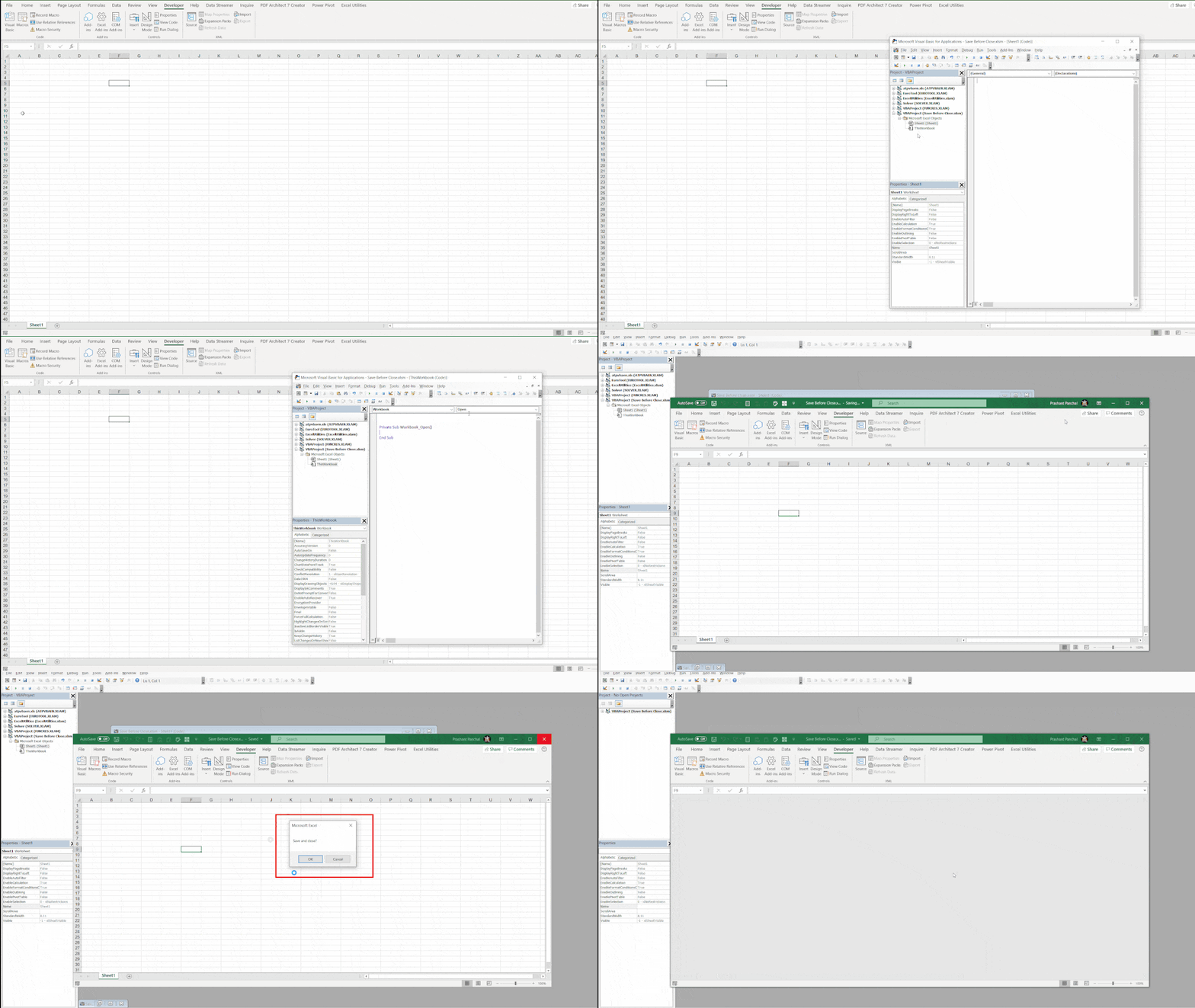
Step-by-Step Setup Instructions
The macro must be placed in the correct location or it will never run. Follow these steps exactly:
- 1.Open your workbook. Press ALT + F11 to open the Visual Basic Editor.
- 2.In the Project window on the left, find your workbook name and expand it by clicking the + sign.
- 3.Double-click ThisWorkbook to open its code window.
- 4.In the left drop-down at the top of the code window, select Workbook.
- 5.In the right drop-down, select BeforeClose. An empty procedure stub appears automatically.
- 6.Paste the macro code inside the stub (between the
SubandEnd Sublines). - 7.Close the VBA Editor and save the workbook as .xlsm to preserve the macro.
Animation: Placing the Code in BeforeClose
Customizing the Macro
The base code is immediately useful, but easy to tailor to your situation:
Change the Prompt Message
Replace "Save and close?" with any message that makes sense for your users:
MsgBox "All changes will be saved. Are you sure you want to close?", vbOKCancelOnly Save If There Are Unsaved Changes
By default, ThisWorkbook.Save writes the file even if nothing has changed. To skip unnecessary saves:
Case Is = vbOK
    If Not ThisWorkbook.Saved Then
        ThisWorkbook.Save
    End If
Add a Title to the Dialog Box
The third argument of MsgBox sets the title bar text of the dialog:
MsgBox "Save and close?", vbOKCancel, "FinDataPro Workbook"Practical Applications
This macro is particularly valuable in the following situations:
Shared Data Entry Workbooks
When multiple staff enter data daily, one accidental 'Don't Save' click can wipe a full session of input.
Financial Models
Protecting scenario inputs, assumptions, or actuals from being lost due to accidental dismissal of Excel's default prompt.
Automated Reports
Workbooks that pull live data and write results need to save before closing so the refreshed data is preserved.
Training and Audit Files
When workbooks are used in controlled environments where every change must be logged and saved without exception.
⚠️ A Word of Caution
This macro removes the user's ability to close without saving. If overused — particularly in workbooks used frequently for ad-hoc exploration — it can feel restrictive. Apply it selectively to workbooks where data preservation genuinely matters.
Frequently Asked Questions
Why use Select Case instead of If...Then for the OK/Cancel check?+
Both work, but Select Case reads more cleanly when you have multiple possible values to check. In this macro we check for vbOK and vbCancel. Select Case makes it easy to add more conditions later without nesting multiple If...ElseIf blocks.
What happens if the user clicks Cancel in the message box?+
The macro sets Cancel = True on the BeforeClose event parameter. This tells Excel to abort the close entirely — the workbook stays open, exactly as if the user had never tried to close it.
Will this macro save the workbook even if nothing has changed?+
Yes — ThisWorkbook.Save runs unconditionally when OK is clicked. To avoid unnecessary writes, add If Not ThisWorkbook.Saved Then before the Save line.
Do I need to save the file as .xlsm for this to work?+
Yes. VBA events only run in macro-enabled formats: .xlsm or .xlsb. Saving as .xlsx strips all VBA code silently and the BeforeClose event will never fire.
Where exactly does this code go — ThisWorkbook or a Module?+
It must go inside the ThisWorkbook object in the VBA Editor. Open the editor with ALT+F11, double-click ThisWorkbook, select Workbook from the left drop-down and BeforeClose from the right, then paste the code there.
See It in Action
Download the working example workbook with the macro already set up — close it and the prompt appears instantly.
Prashant Panchal is a Chartered Accountant (ACA) and Financial Modelling & Valuation Analyst (FMVA®) with 19 years of experience in finance, FP&A, and financial modelling across the GCC region. He is the founder of FinDataPro.