
Save Workbook on a Cell or Range ChangeAutomatically Save Critical Data with This VBA Event
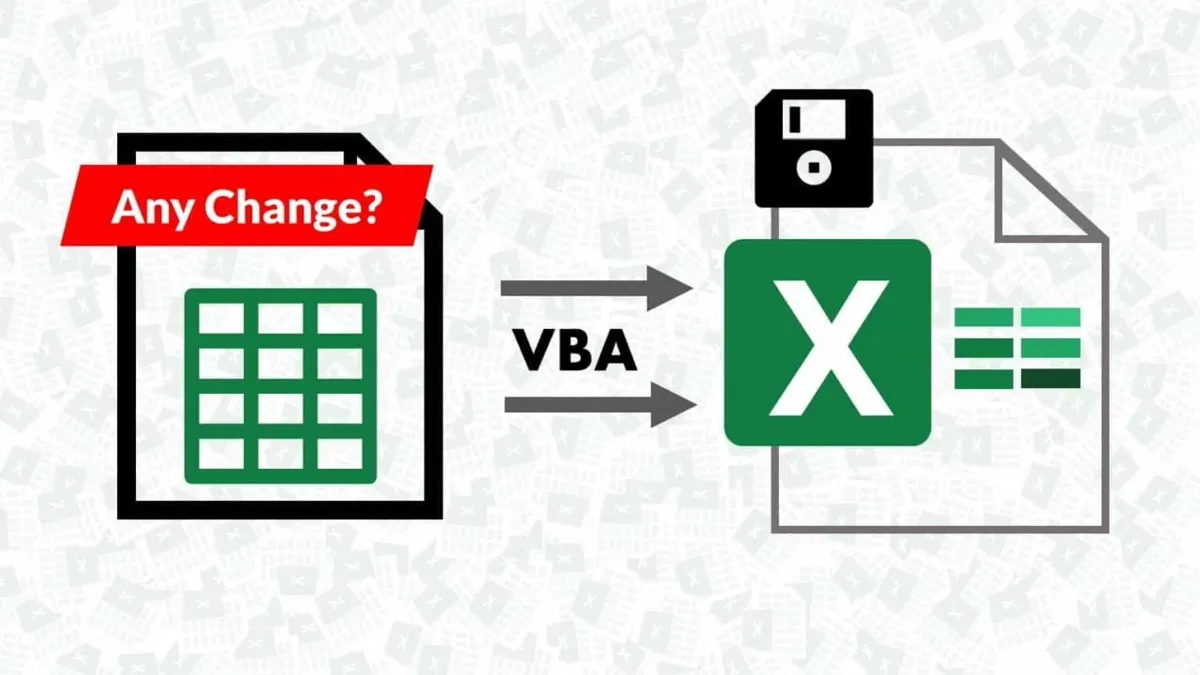
Automatically save your Excel workbook when specific cells or ranges change using the Worksheet_Change event. Essential for sensitive data where every entry must be immediately persisted.
ACA | FMVA® | 19 Years in Finance
Why Automatic Save on Cell Change Matters
When working with extremely sensitive data—financial records, scientific measurements, audit trails, or critical business information—every data point matters. A single moment of forgetfulness to save can result in catastrophic data loss. That's where Excel VBA's automatic saving capability becomes invaluable.
This macro automatically saves your workbook the moment specific cells change, ensuring your most important data is immediately persisted to disk. You define which cells or ranges trigger the save, giving you precise control over when this automatic behavior occurs.
⚠️ Important Warning
Once this macro saves your workbook, there is no undo. If you enter data incorrectly, it will be permanently saved. Exercise extreme caution when working with automatically-saving workbooks. Consider adding data validation to critical input cells as an additional safeguard.
The Complete VBA Code
This macro uses the Worksheet_Change event to monitor cells and the Intersect method to determine if the changed cell is within your specified range.
Private Sub Worksheet_Change(ByVal Target As Range)
    ' Step 1: Define the target range that triggers the save
    ' Change "A2:D8" to your desired range
    If Intersect(Target, Me.Range("A2:D8")) Is Nothing Then
        Exit Sub
    End If

    ' Step 2: Save the workbook
    Application.DisplayAlerts = False
    ThisWorkbook.Save
    Application.DisplayAlerts = True

    ' Optional: Provide user feedback
    Application.StatusBar = "Workbook automatically saved at " & Now
End Sub
How the Code Works
Define Your Trigger Range
Modify 'A2:D8' to specify which cells should trigger the automatic save when changed. You can use any valid range reference like 'B1', 'C5:F20', or a named range.
Intersect Method Checks for Overlap
The Intersect method determines if the changed cell (Target) overlaps with your specified range. If there's no intersection (Nothing), the macro exits immediately without saving.
Automatic Save Execution
When Intersect finds an overlap, ThisWorkbook.Save executes, immediately persisting all changes to disk. DisplayAlerts are temporarily disabled to prevent pop-ups.
User Feedback (Optional)
The StatusBar shows a timestamp of the last save, providing visual confirmation that your data was successfully saved. This helps build confidence in the automation.
Step-by-Step Setup Guide
- 1.Open your Excel workbook and press Alt + F11 to open the Visual Basic Editor.
- 2.Alternatively, right-click on the worksheet tab and select View Code from the context menu.
- 3.In the Project Explorer window, locate your workbook and expand it to see all worksheets.
- 4.Double-click on the worksheet where you want the automatic save functionality.
- 5.At the top of the code window, select Worksheet from the left dropdown and Change from the right dropdown.
- 6.Copy the VBA code above and paste it into the Worksheet_Change event procedure.
- 7.Modify the range address
"A2:D8"to match the cells you want to monitor. - 8.Save the workbook as a macro-enabled file (.xlsm) by going to File → Save As and selecting 'Excel Macro-Enabled Workbook'.
Customizing the Macro
The macro is highly customizable to fit your specific needs:
' Customize the monitored range (examples):
Me.Range("A1")              ' Single cell
Me.Range("B2:F100")         ' Cell range
Me.Range("DataEntry")       ' Named range
Me.Range("A:A")             ' Entire column
Me.Range("1:1")             ' Entire row

' Add conditions for specific scenarios:
If Intersect(Target, Me.Range("A2:D8")) Is Nothing Then Exit Sub
If Target.Cells.Count > 1 Then Exit Sub  ' Only single cells
If Target.Value = "" Then Exit Sub ' Ignore blank entries🎯Pro Tip: Add Data Validation
Combine this macro with Excel's built-in Data Validation feature to prevent incorrect entries in your trigger cells. This adds a crucial safeguard against saving erroneous data.
Practical Applications
Financial Data Entry
Automatically save trading logs or financial transactions as they're entered to prevent data loss.
Inventory Management
Real-time inventory updates where every stock count change must be permanently recorded immediately.
Timesheet Tracking
Employee timesheet workbooks that save automatically when hours are entered or modified.
Quality Control Logs
Manufacturing QC data where measurements must be saved instantly to maintain audit trails.
Customer Order Forms
Sales order entry systems that automatically save when order quantities or details change.
Laboratory Data
Scientific research data where each reading or calculation must be permanently logged.
Frequently Asked Questions
Where does this VBA code go in Excel?+
This code must be placed in the Worksheet_Change event code window, not a standard module. Right-click on the sheet tab, select 'View Code', and paste it there. This allows the macro to run automatically whenever any cell changes on that specific sheet.
Do I need to save as .xlsm for this macro to work?+
Yes, you must save your workbook as a macro-enabled file (.xlsm). Standard .xlsx files cannot contain VBA code. When you first save, Excel will warn you about the macro-enabled format.
What does the Intersect method do in this VBA code?+
The Intersect method checks if the changed cell (Target) overlaps with your specified range. It returns the overlapping range if there's an intersection, or Nothing if the changed cell is outside your defined range. We use this to limit saves to only specific cells.
Can I modify this to monitor multiple worksheets?+
Yes, use the Workbook_SheetChange event instead of Worksheet_Change. Place the code in the ThisWorkbook module to monitor all sheets in the workbook, or copy the same code to multiple individual sheet modules.
What if I enter incorrect data? Is there an undo option?+
No, there is no undo once the VBA code runs and saves the workbook. The save happens immediately when the cell changes. This is why extreme care should be taken when working with automatically-saving workbooks.
See It in Action
Download the working example workbook with the macro already set up — change a cell in the range and watch it save instantly.
Prashant Panchal is a Chartered Accountant (ACA) and Financial Modelling & Valuation Analyst (FMVA®) with 19 years of experience in finance, FP&A, and financial modelling across the GCC region. He is the founder of FinDataPro.