
Excel VBA Workbook EventsThe Complete Automation Series
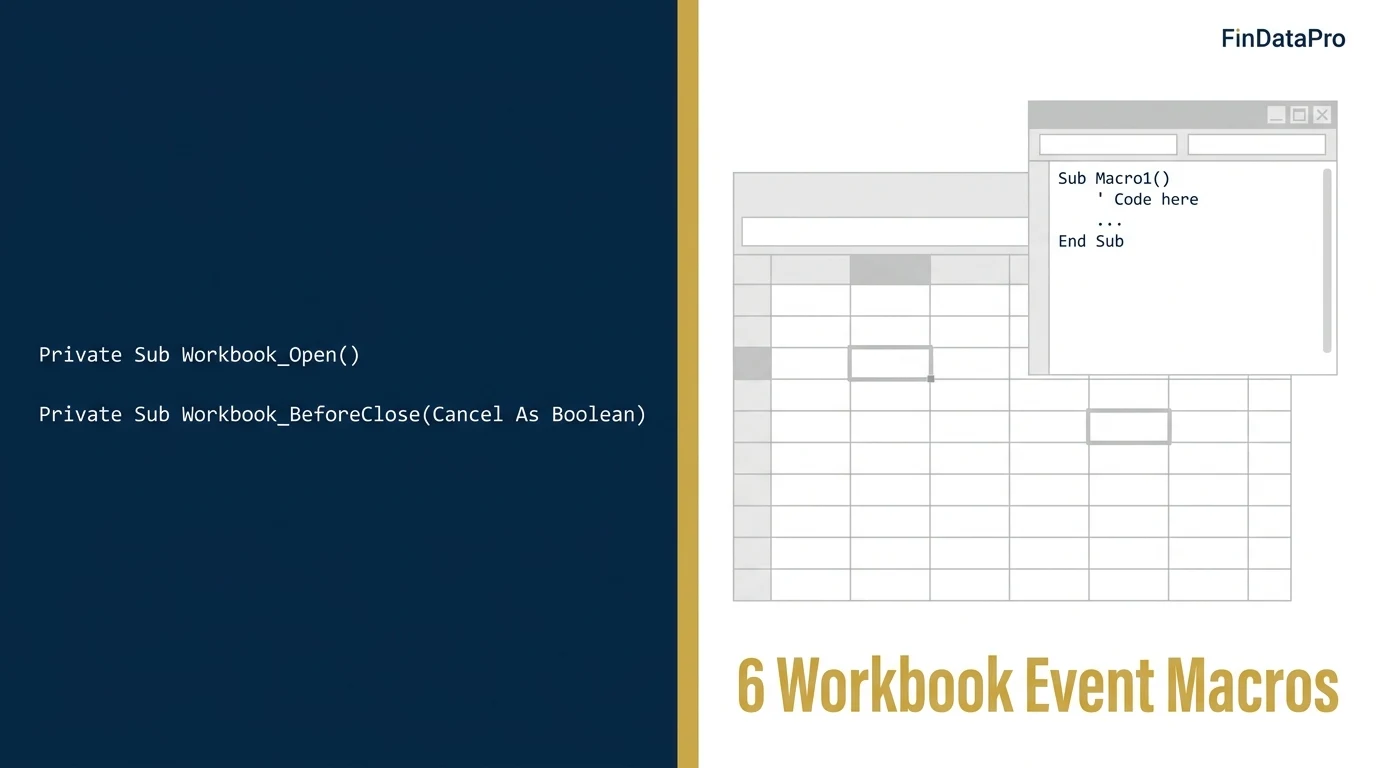
Button macros wait for someone to press the button. Workbook events run themselves. This is the complete FinDataPro VBA series: 20 dedicated guides, each targeting one event or method, every snippet finance-tested and copy-paste ready.

ACA | FMVA® | 19 Years in Finance
The moment a workbook opens, Excel fires Workbook_Open. A cell changes, it fires Worksheet_Change. The workbook is about to close, it fires Workbook_BeforeClose. You write the code once in the correct module and it executes automatically, for every user, every time.
In finance, this is not a productivity trick. It is infrastructure. Shared workbooks (month-end close files, budget trackers, reconciliation templates, journal entry logs) fail at the human steps, not the accounting. Someone forgets to re-apply sheet protection. Unsaved changes vanish when a colleague clicks "Don't Save." A macro breaks because the bank statement CSV was moved to a different folder. Event-driven VBA removes those failure points entirely.
This series covers twenty topics across three tiers. Every snippet is tested, finance-specific, and written for accountants who need to understand the code, not just copy it.
A Quick Example: Workbook_Open
Paste this into the ThisWorkbook module (Alt + F11, then double-click ThisWorkbook under Microsoft Excel Objects). It unprotects a named sheet every time the file opens:
Option Explicit

Private Sub Workbook_Open()
    ' Unprotect the data entry sheet on open
    ' Combine with Workbook_BeforeClose to re-protect on close
    Dim wsData As Worksheet
    Set wsData = ThisWorkbook.Sheets("Data Entry")
    wsData.Unprotect Password:="YourPasswordHere"
End Sub
Combine it with the Workbook_BeforeClose guide to re-apply protection on close. That is the standard protect-and-unprotect pattern for shared finance workbooks.
Where Does the Code Go?
The single most common mistake in event-procedure setups: pasting code into the wrong module. Workbook_Open and Workbook_BeforeClose belong in ThisWorkbook. Worksheet_Change belongs in the module for the specific sheet you want to monitor. Standard modules (Module1, Module2) are for subs you call manually. An event procedure pasted into Module1 will never fire, with no error and no warning.
How to navigate to the right module
- Open the VBA Editor: Alt + F11
- In the Project window (top-left), expand your workbook name
- Expand Microsoft Excel Objects
- Double-click ThisWorkbook for workbook-level events
- Double-click the sheet name (e.g. Sheet1) for worksheet-level events
Basic Tier: Events and Methods
Start here if you are new to event-driven VBA. These eleven guides cover the core events and methods used daily in finance workbooks: open, close, cell-change, new workbooks, and file selection.
Workbook_Open Event
Auto-run a macro on file open. Finance use: force-refresh links to a shared bank statement folder.
Workbook_BeforeClose Event
Prevent closing a reconciliation file with unsaved entries. Force save or cancel the close.
Protect Worksheet on Close
Re-apply sheet protection the moment a shared workbook closes. The other half of unprotect-on-open.
Worksheet_Change Event
Auto-flag a cell red when a budget variance exceeds threshold. Fire code on every data entry.
Workbooks.Add Method
Programmatically create a new month-end working file from a template. No manual File > New.
Application.GetOpenFilename
File picker dialog for importing a bank statement CSV. No hardcoded paths, no broken macros.
Close Workbook Without Saving
Batch-close month-end files without the save prompt. Safe, deliberate, no data-loss risk.
Loop Through Worksheets
Loop all 12 monthly tabs to build a consolidated P&L. One macro, one pass, zero copy-paste.
Check If Workbook Is Open
Prevent duplicate-open errors on shared finance drives. Test before opening.
Loop Through Range of Cells
Flag variance outliers cell-by-cell in a budget vs actual sheet. Target specific ranges only.
MsgBox Yes / No
Approval gate before a macro posts journal entries. Stop and confirm before irreversible actions.
Intermediate Tier: Patterns and Performance
Once you are comfortable with the basic event model, move to these. They cover the techniques that matter when workbooks grow: looping through folders, proper error handling with On Error GoTo, and the performance gap between Range and array operations on large datasets.
Find Last Row
Compare End(xlUp), CurrentRegion, and UsedRange: which breaks on ERP exports with blank rows.
Loop Through Files in a Folder
Batch-import bank statement CSVs from a folder into one workbook. FileSystemObject pattern.
Copy Paste Values Only
Convert formula-driven schedules to static values before archiving. The correct way to strip formulas.
Error Handling: On Error GoTo
Why finance macros need On Error GoTo, not Resume Next. A silent failure in reconciliation.
Array vs Range Performance
Timer-tested: looping 50,000 rows via Range vs array. The difference is not trivial.
Advanced Tier: Automation Beyond the Worksheet
These four go past the worksheet entirely: deduplicating with a Dictionary object, exporting individual PDFs, sending email straight from Outlook, and building a proper UserForm for non-technical staff.
Dictionary Object Deduplication
Deduplicate vendor names across a 10,000-row AP ledger with Scripting.Dictionary.
Export Range to PDF
Auto-generate and email individual payslips or invoices as PDF, one per row.
Send Email From Excel via Outlook
Auto-email an AR aging report per customer, straight from one macro.
UserForm Data Entry
A no-training data entry form for non-finance staff logging expenses.
Frequently Asked Questions
Where does the VBA code for workbook events go?
Workbook-level events (Workbook_Open, Workbook_BeforeClose) go in the ThisWorkbook module. Worksheet-level events (Worksheet_Change) go in the specific sheet's module. Standard modules are for manually triggered subs. An event procedure pasted into a standard module will never fire.
What is the difference between a workbook event and a worksheet event?
A workbook event fires on actions affecting the workbook as a whole: opening, closing, saving. A worksheet event fires on actions affecting a specific sheet: a cell changing, the sheet being activated. Workbook events go in ThisWorkbook; worksheet events go in the individual sheet module.
Do workbook events work in Excel for Mac?
Yes. Workbook_Open, Workbook_BeforeClose, and Worksheet_Change all work in Excel for Mac with .xlsm files. Application.GetOpenFilename works on Mac but file filter syntax differs. Test before distributing to Mac users.
Do I need to save as .xlsm for events to work?
Yes. Saving as .xlsx strips all VBA code silently. Excel warns you before doing so. Save as .xlsm (macro-enabled) or .xlsb (binary) to preserve event procedures. Even with the correct format, if a user's Trust Center blocks macros, no events will fire.
For the full VBA event reference, see the Microsoft Learn VBA Workbook Events reference.
Discussion
Leave a Comment
Comments are moderated and appear once approved.
Prashant Panchal is a Chartered Accountant (ACA) and Financial Modelling & Valuation Analyst (FMVA®) with 19 years of experience in finance, FP&A, and financial modelling across the GCC region. He is the founder of FinDataPro.