
Unprotect Specific Worksheet on Workbook OpenAutomatically Unlock Sheets When You Open Your Workbook
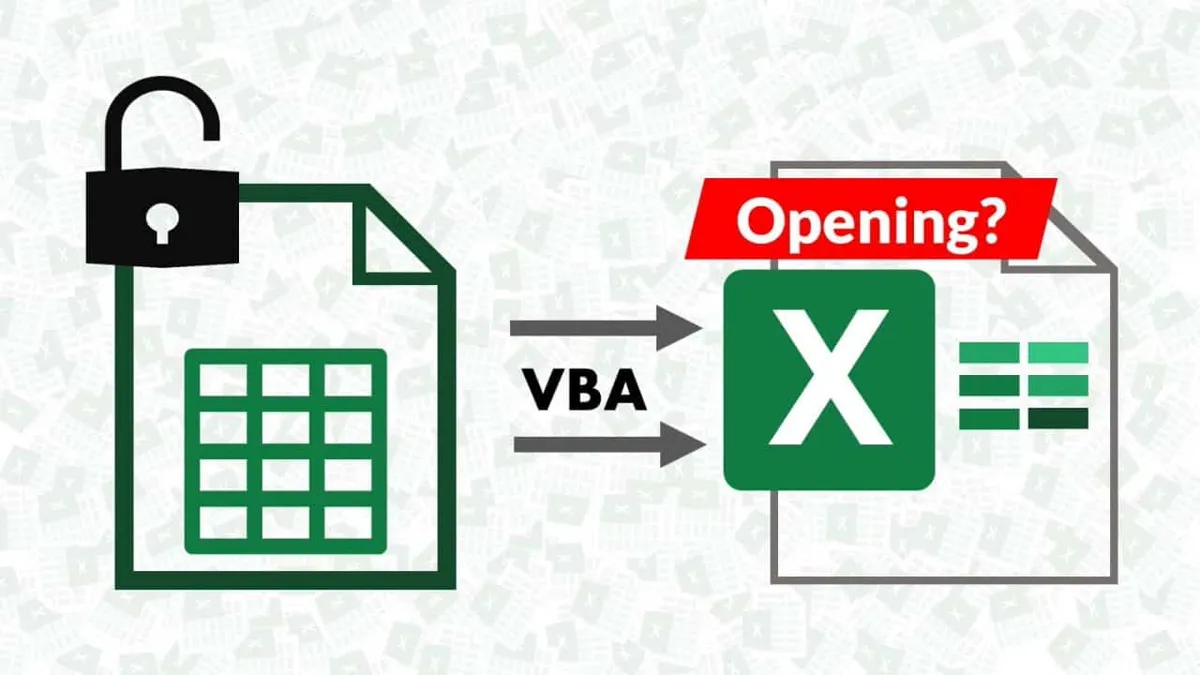
Tired of manually unprotecting worksheets every time you open a workbook? This VBA macro uses the Workbook_Open event to automatically unprotect the sheets you need ready for editing — the moment the workbook opens.
ACA | FMVA® | 19 Years in Finance
Why Unprotect on Workbook Open
If you distribute protected workbooks to collaborators, they often come back still protected — even after edits were made. If you find yourself constantly unprotecting the same worksheet to continue your work, this macro automates that repetitive step.
The macro runs the moment Excel opens the workbook, giving you an unprotected sheet to work with immediately. Other sheets can remain protected for data integrity — only the specific sheet you need unlocks automatically.
⚠️ Security Note
Only unprotect sheets that need editing. Keep sensitive data sheets protected. This automation is intended for collaborative environments where trust exists between users.
The Complete VBA Code
This code uses the Workbook_Open event to unprotect your specified worksheet automatically when the workbook opens.
Private Sub Workbook_Open()
    'Unprotect the sheet with your password
    Sheets("Sheet1").Unprotect Password:="RED"
End Sub
How It Works
Workbook_Open Event
Every time the workbook opens, Excel automatically triggers this event. Your code runs before you see the spreadsheet.
Target the Right Sheet
Replace "Sheet1" with the actual name of your worksheet. Check the tab name exactly — it's case-sensitive.
Provide the Password
Enter your password as the argument. Excel uses this to unprotect the sheet. Omit the password if the sheet has none.
Sheet Unprotected
The sheet becomes editable immediately. Other sheets stay protected as they were.
Step-by-Step Setup
- 1.Open your workbook and press ALT + F11 to open the VBA Editor.
- 2.In the Project window, double-click ThisWorkbook to open its code window.
- 3.Select Workbook from the left dropdown and Open from the right dropdown.
- 4.Paste the code above, replacing
"Sheet1"and"RED"with your sheet name and password. - 5.Save as a macro-enabled workbook (.xlsm) before closing.
Customizing the Macro
The code is fully customizable for your specific needs:
' Unprotect multiple sheets:
Sheets("Sheet1").Unprotect Password:="RED"
Sheets("Summary").Unprotect Password:="BLUE"
Sheets("Data").Unprotect

' Unprotect based on username:
If Application.UserName = "John" Then
    Sheets("Sheet1").Unprotect Password:="RED"
End If
Practical Applications
Shared Team Workbooks
When multiple team members update a workbook, automatically unlock the editing sheet on open.
Client Deliverables
Send protected workbooks to clients that unlock automatically for their input.
Audit Preparation
Quickly unprotect sheets needed for periodic audits without manual intervention.
Training Environments
Create practice workbooks where key sheets open unlocked for learner experimentation.
Frequently Asked Questions
Where does this VBA code go?+
This code must go in the ThisWorkbook object, not a standard module. Open the VBA Editor with ALT+F11, double-click ThisWorkbook in the Project window, select Workbook from the left dropdown and Open from the right, then paste the code there.
Do I need to save the workbook as .xlsm?+
Yes. VBA events only run in macro-enabled workbook formats: .xlsm or .xlsb. If you save as .xlsx, Excel silently removes all VBA code and the Workbook_Open event will never fire.
Can I unprotect multiple worksheets?+
Yes, simply add additional Unprotect lines for each sheet. For example: Sheets("Sheet1").Unprotect Password:="RED" followed by Sheets("Summary").Unprotect Password:="BLUE".
What if I forget the password?+
Unfortunately, Excel VBA cannot recover forgotten passwords. Keep your passwords stored securely in a password manager. The code will throw an error if the wrong password is provided.
Can I re-protect the sheet when closing?+
Yes — combine this with the Workbook_BeforeClose event to re-protect the sheet automatically. See our related post on protecting worksheets on workbook close.
See It in Action
Download the working example workbook with the macro already set up — open it and watch the sheet unlock automatically.
Prashant Panchal is a Chartered Accountant (ACA) and Financial Modelling & Valuation Analyst (FMVA®) with 19 years of experience in finance, FP&A, and financial modelling across the GCC region. He is the founder of FinDataPro.