
How to Consolidate Bank Statements in Excel Automatically (Free Power Query Template)
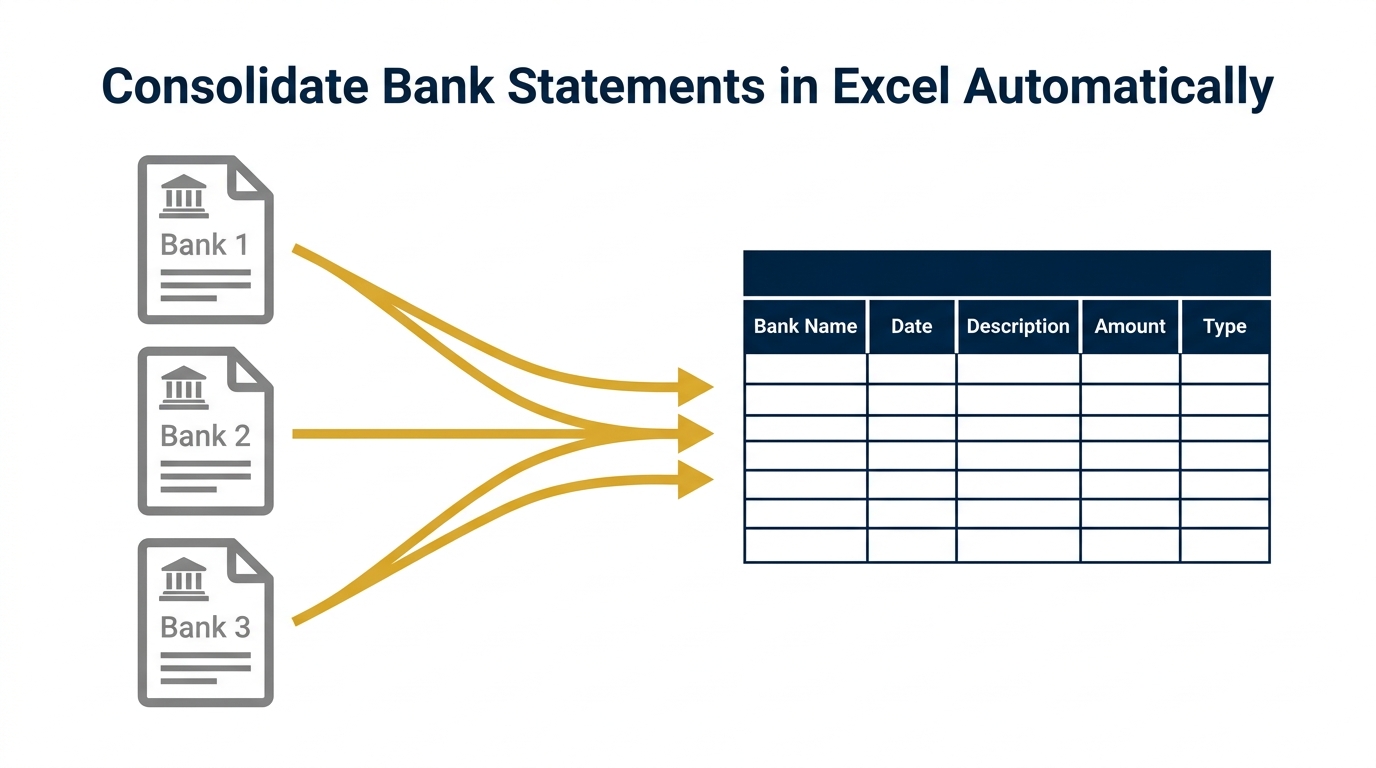
Every month, somewhere in a finance team, someone is downloading three bank exports, opening each one separately, copying rows into a master sheet, and wrestling with date formats that do not match. The 45 minutes this takes is visible. The errors it introduces are not.
A misread date locale on transactions from HDFC or Chase silently assigns items to the wrong period. No warning. The amounts look right. The dates are wrong. The downstream impact on reconciliation, VAT filings, and management accounts is real.
This guide walks you through the Universal Bank Statement Cleaner — a free Power Query template that consolidates bank statements from multiple banks automatically. You configure it once per bank. Every month after that: drop the new file in a folder, click Refresh. That is it.

ACA | FMVA® | 19 Years in Finance
The Real Cost of the Copy-Paste Workflow
Most finance professionals underestimate what the manual bank consolidation workflow costs. The direct time — downloading, copying, pasting — is visible. The compounding cost of the errors it introduces is not.
Consider the maths. Forty-five minutes per month across three banks is nine hours annually on a task that produces no insight on its own. Pure data plumbing. And that assumes nothing goes wrong.
When a date locale mismatch causes debits to post to the wrong period — which happens more often than people admit — the downstream impact on reconciliation, VAT filings, and management accounts is significant. The error is silent. There is no flag, no alert. The amounts are correct. The dates are wrong.
The Root Cause: Every Bank Exports Differently
Chase calls the date column "Date." HDFC calls it "Txn Date." SBI puts the date and narration in a single cell. Some banks use one signed amount column. Others split debits and credits. Some use DD/MM/YYYY. Others use MM/DD/YYYY.
That structural inconsistency is why a basic Power Query append does not work out of the box. You need a configuration layer that tells the tool exactly how each bank formats its data — once — so it handles any file that bank produces from that point forward.
What Is the Universal Bank Statement Cleaner?
The Universal Bank Statement Cleaner is a free Excel workbook powered by Power Query. It consolidates bank statements from multiple banks — regardless of format, column naming, date locale, or amount convention — into one clean, standardised output table with five columns: Bank Name, Date, Description, Amount, Type.
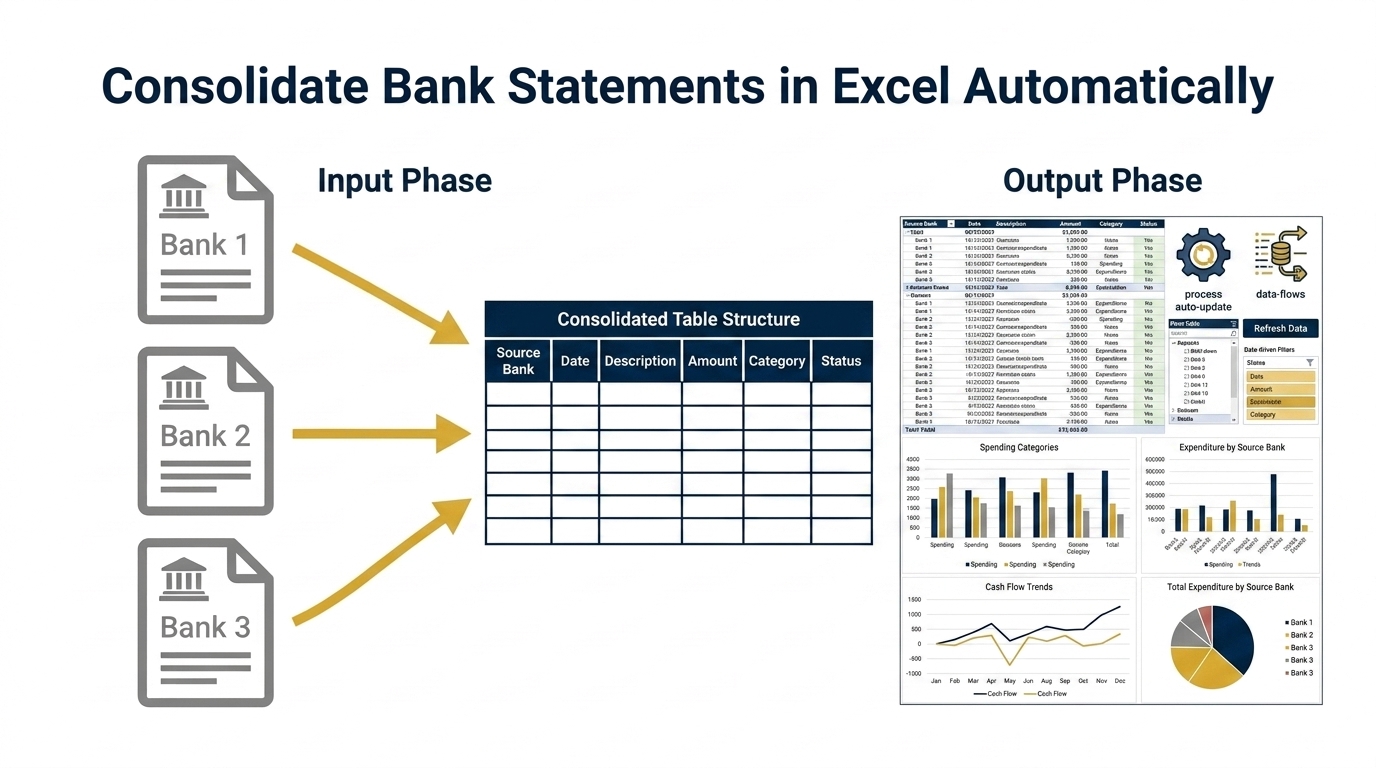
It handles:
- CSV and Excel (.xlsx) source files — detected automatically by file extension
- Any column naming convention — you map it once in the Setup tab
- Signed amounts or separate Debit/Credit columns — both supported
- DD/MM/YYYY and MM/DD/YYYY date formats — configured per bank
- Combined date and description fields — common in SBI and similar Indian bank exports
- Junk rows — header repeats, footer totals, and blank rows filtered automatically
- Thousands separators in amounts — handled without breaking number conversion
Built for finance professionals across the GCC, India, UK, USA, and any market where managing accounts across multiple banking relationships is a monthly reality.
Consolidation is the transformation half of the job — Power Query's strength. The matching and exception-flagging that follows is often better handled with formulas; see our guide to choosing Power Query vs formulas for reconciliation for how the two layers fit together.
What You Need Before You Start
Three things:
- Microsoft Excel 2016 or later (or Microsoft 365)
Power Query is built in from Excel 2016 onwards. If you are on an older version, check the Power Query install guide for your options.
- Bank statement files exported as CSV or Excel
PDF exports do not work. You need the raw data file. Every major bank offers CSV or Excel export from their online banking portal.
- Column headers in Row 1 of each bank file
If your bank export has logo rows, account information, or letterhead above the data headers, delete those rows before using the tool. Power Query reads from Row 1.
How to Set Up the Universal Bank Statement Cleaner
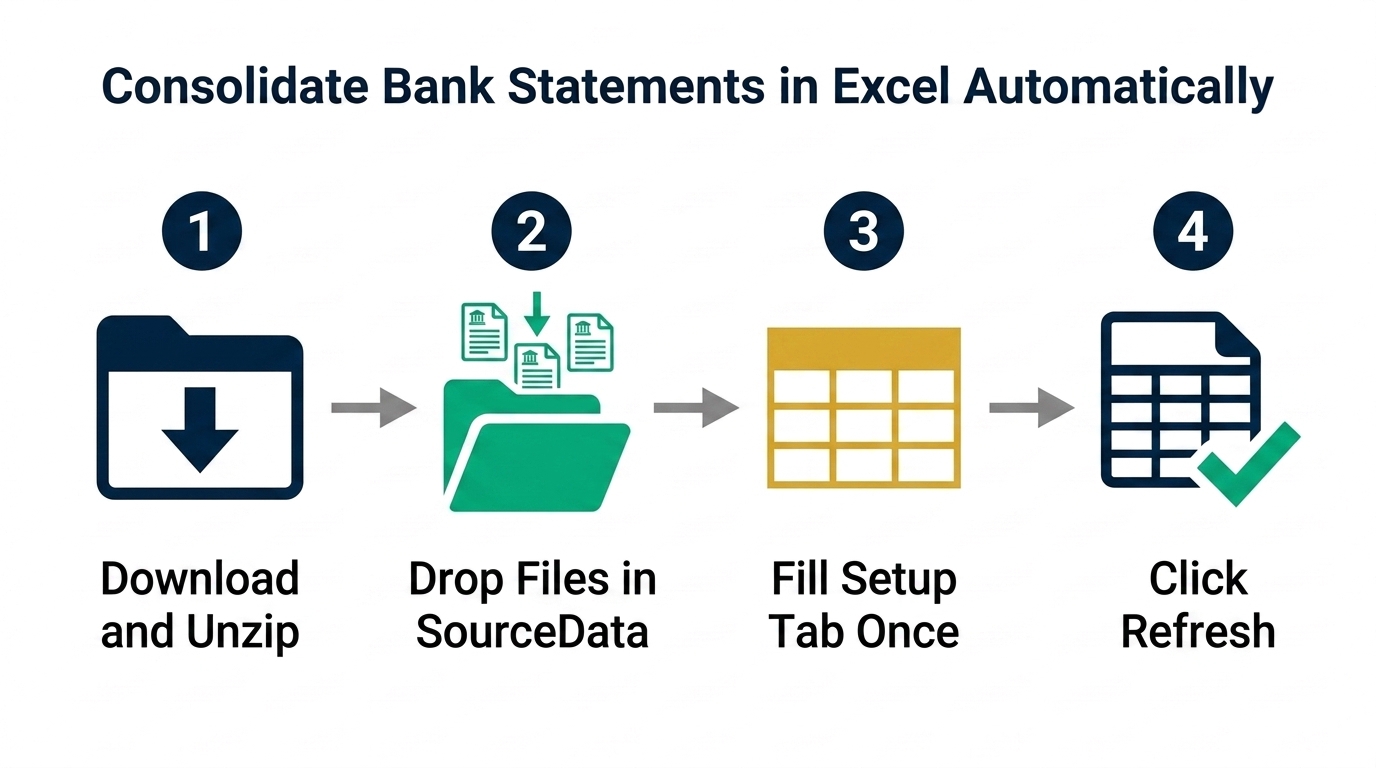
Getting the tool running takes about ten minutes the first time. The quick version is here. Full step-by-step instructions with screenshots are inside the Instructions tab in the downloaded workbook.
Download and Unzip
Download the ZIP file and unzip it. You will find the Excel workbook and a folder called SourceData sitting together. Do not separate them, rename either one, or move the workbook to a different location without the folder.
Drop Your Bank Files into SourceData
Copy your bank statement exports into the SourceData folder. Name each file starting with your bank name, followed by an underscore: Chase_Jun2026.csv or HDFC_Jun2026.xlsx. The text before the underscore identifies which bank the file belongs to.
Fill in the Setup Tab — Once Per Bank
Open the workbook and go to the Setup tab. Add one row for each bank. Look at Row 1 of your bank file and copy the column header names exactly. This is a one-time step. Once a bank is configured in Setup, you never touch it again.
Click Refresh All
Go to the Data tab in Excel and click Refresh All. The Master Output tab will populate with your consolidated, cleaned transactions. Sorted by Bank Name and Date.
Watch: Full Setup Walkthrough
How the Setup Tab Works
The Setup tab is the only place where human input is required. It is a simple eight-column table called tblSetup. Each row represents one bank. Once a row is filled in, the tool handles every future file from that bank automatically.
| Column | What to enter | Example |
|---|---|---|
| Bank Name | Exactly matches the prefix before the underscore in your filename | Chase |
| Date Column Name | Exact text from Row 1 of your bank file. Case-sensitive. | Txn Date |
| Description Column Name | Exact text from Row 1 for the narration or description column | Particulars |
| Amount Type | Signed (one column with +/- values) or Debit/Credit (two separate columns) | Signed |
| Date Locale | en-GB for DD/MM/YYYY (GCC, India, UK). en-US for MM/DD/YYYY (US banks). | en-GB |
| Combined Date and Desc | Y only if your bank puts date and narration in one cell (SBI, some Indian banks). Otherwise N. | N |
The Date Locale Field Is the One That Causes Damage
Getting this field wrong causes no error — it silently assigns transactions to the wrong dates. If your bank exports 03/06/2026 and you set en-US instead of en-GB, every transaction goes to 6 March instead of 3 June. The amounts are correct. The dates are not. This matters enormously for period-end reporting, reconciliation, and VAT filing.
Rule: en-GB covers GCC (Bahrain, UAE, Saudi Arabia, Kuwait, Qatar, Oman), India, UK, South Africa, and most of Africa. en-US covers US banks such as Chase and Bank of America.
Running Your First Consolidation
Once Setup is filled in and your files are in SourceData, click Data → Refresh All. Power Query will:
- 1Scan the SourceData folder and detect all CSV and Excel files
- 2Match each file to its bank profile in Setup using the filename prefix
- 3Import and clean each file — stripping junk rows, normalising amounts, converting dates
- 4Append all cleaned data into one standardised table
- 5Sort by Bank Name and Date
The Master Output tab shows your consolidated transactions. The output schema is identical regardless of source: Bank Name, Date, Description, Amount, Type. Every bank standardised to the same five columns.
For a full walkthrough including how to handle edge cases and troubleshoot errors, open the Instructions tab in the downloaded workbook. It covers every scenario — including the Query Options Privacy setting that triggers the Formula Firewall error on first run.
Every Month After That
This is where the value accumulates. Drop your new statement files into SourceData — Chase_Jul2026.csv, HDFC_Jul2026.csv — and click Refresh All. No configuration changes. No copy-pasting. The tool picks up every file in the folder and consolidates the full history.
If you want to limit the output to a specific period, remove the older files from SourceData before refreshing. The tool consolidates everything it finds.
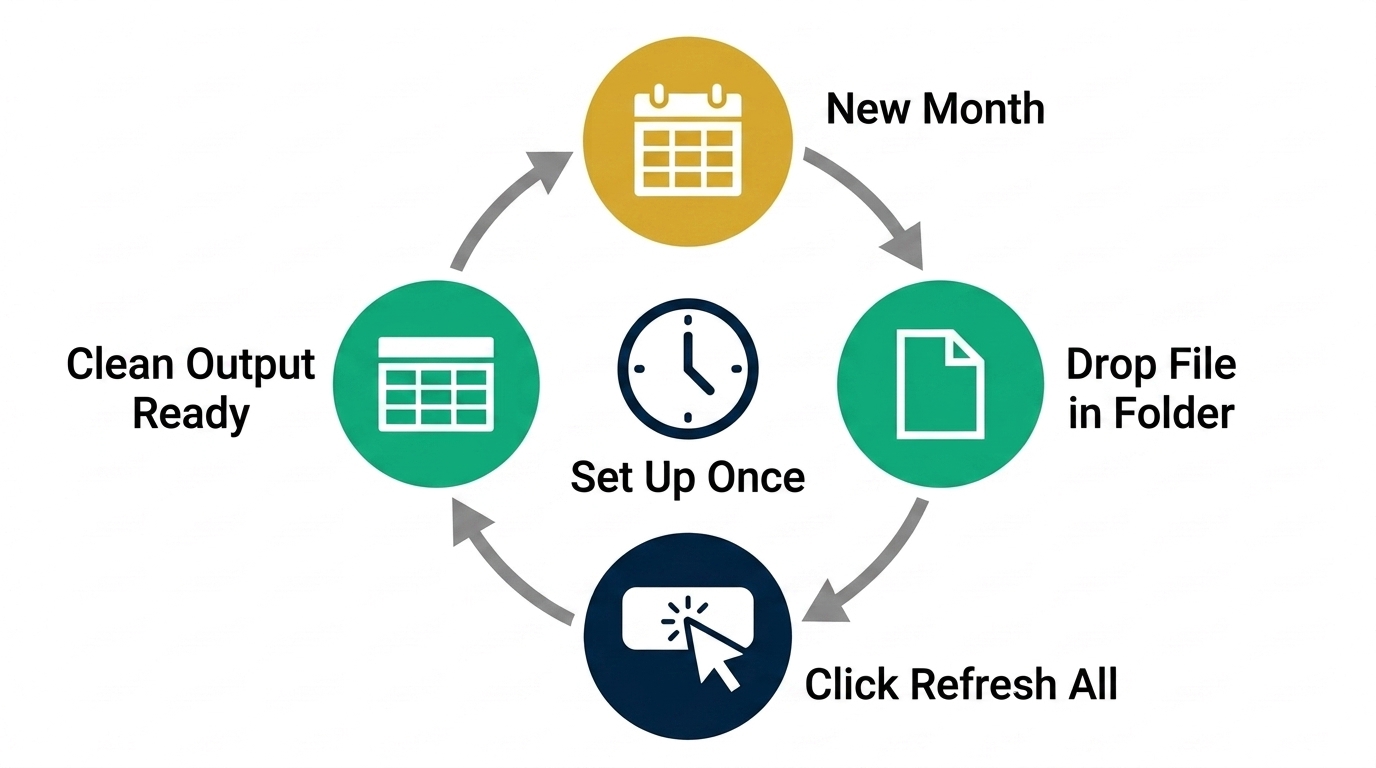
Month 1: ten minutes to set up, five minutes per bank to configure Setup, one refresh to consolidate. Month 2 onwards: drop files, click Refresh. The setup investment is a one-off. The return compounds every month.
Common Errors and How to Fix Them
Blank output after refresh
The join between your filename and the Setup Bank Name found no match. Check that the Bank Name in Setup exactly matches the text before the underscore in your filename — including capitalisation. Chase and chase are not the same.
Dates look wrong in the output
The Date Locale in Setup is set incorrectly. Swap en-GB for en-US or vice versa and refresh. This is the most common error and the most consequential — wrong dates flow directly into your reconciliation and period-end reports.
Output shows "CHECK SETUP" message
A column name in Setup does not match the actual header in your bank file. Open the bank file, copy the exact text from Row 1, and paste it into the relevant Setup cell. Case and spacing must match exactly.
Formula Firewall error
Go to Data → Get Data → Query Options → Privacy and select Ignore the Privacy Levels and potentially improve performance. This is a one-time setting. Refresh again after applying it.
Who Is This Tool For?
Anyone who manages transactions across more than one bank account and exports that data into Excel:
Finance Managers and CFOs
Consolidating company accounts across multiple banking relationships — common in GCC organisations holding accounts in different countries or currencies.
Accountants and Bookkeepers
Processing client bank data from different institutions every month. One Setup configuration per client bank, then automation handles every subsequent month.
Small Business Owners
Running personal and business accounts at different banks. Consolidate everything into one clean transaction history without touching a formula after setup.
Finance Analysts
Building multi-source transaction datasets for cash flow analysis, variance reporting, or multi-entity consolidations. One refresh to get the full dataset.
Works with banks in the USA, India, UK, UAE, Bahrain, Saudi Arabia, Egypt, Nigeria, Canada, South Africa, and anywhere else that exports CSV or Excel statements with headers in Row 1. For a deeper look at what Power Query can do with complex financial data, the complete Power Query guide for finance professionals covers the fundamentals.
Download the Universal Bank Statement Cleaner — Free
Any bank. Any country. CSV or Excel. Set up once, refresh every month. Includes the workbook, SourceData folder, and full Instructions tab.
Frequently Asked Questions
Does this tool work with any bank globally?
Yes, provided your bank exports statements as CSV or Excel with column headers in Row 1. The Setup tab lets you map each bank's specific column names and date format, so the tool handles any structure. You configure it once per bank — and that configuration handles every future file from that bank automatically.
Do I need to know Power Query to use this?
No. The tool runs entirely on button clicks after the one-time Setup configuration. You will not write a single line of M code. If you are curious about how it works under the hood, the queries are visible in the Power Query Editor.
What Excel version do I need?
Excel 2016 or later, or any Microsoft 365 subscription. Power Query is built in from Excel 2016 onwards. If you are on an older version, the Power Query install guide covers your options.
Can I add a new bank at any time?
Yes. Add a new row to the Setup tab with that bank's configuration, name your files with the matching prefix, drop them in SourceData, and refresh. The tool picks up the new bank alongside all existing ones with no changes to existing configurations.
What happens if my bank changes its column names in a future export?
Update the relevant cells in the Setup tab to match the new headers and refresh. The configuration is not baked into the queries — it reads from Setup on every refresh. Changing one cell is all it takes.
Can I keep multiple months of statements in SourceData at the same time?
Yes. The tool consolidates every file it finds in the SourceData folder. Files from January, February, and March all appear in the output after a single refresh. Remove files you do not want included before refreshing.
Why does Date Locale matter so much?
A wrong locale causes silent date errors with no warning. If your bank exports 03/06/2026 and you set en-US instead of en-GB, every transaction is assigned to 6 March instead of 3 June. The amounts are correct. The dates are wrong — which matters enormously for reconciliation, period-end reporting, and VAT filing.
Is the tool free?
Yes. The Universal Bank Statement Cleaner is free. Enter your email and the download link arrives in your inbox. You will also receive updates when new Power Query tools and templates are released.
Stop Rebuilding the Same Spreadsheet Every Month
Consolidating bank statements manually is one of those tasks that feels unavoidable until you have automated it once. The Universal Bank Statement Cleaner does not require a developer, a consultant, or any Power Query knowledge. It requires ten minutes of setup per bank, and after that the only action is dropping a file into a folder and pressing Refresh.
Nine hours per year, per three-bank setup, returned to work that actually produces insight. That assumes the manual workflow runs perfectly with no date errors, no copy-paste mistakes, no version control issues. In practice the number is higher.
Download the tool
Unzip and place wherever works for you
Drop your first bank statement
Into SourceData, named with the bank prefix and underscore
Fill in one Setup row
Copy headers from Row 1 of your bank file — five minutes per bank
Click Refresh All
Check the Master Output tab
Repeat for each additional bank
Setup is a five-minute job per bank
The detailed instructions — column-by-column guide for the Setup tab, full troubleshooting reference, edge case handling — are inside the workbook's Instructions tab from the moment you download it.
Download the Universal Bank Statement Cleaner
Free. Any bank. Any country. Set up once, refresh every month. Includes the workbook, SourceData folder, and full Instructions tab.
Free. Works with Excel 2016 and Microsoft 365. Download link sent to your inbox.
Also worth reading: how Power Query transforms messy data automatically — a practical guide to cleaning raw data without writing M code.
Prashant Panchal is a Chartered Accountant (ACA) and Financial Modelling & Valuation Analyst (FMVA®) with 19 years of experience in finance, FP&A, and financial modelling across the GCC region. He is the founder of FinDataPro.
Discussion
Leave a Comment
Comments are moderated and appear once approved.