
VBA Copy Paste Values Only: Strip Formulas Before Archiving
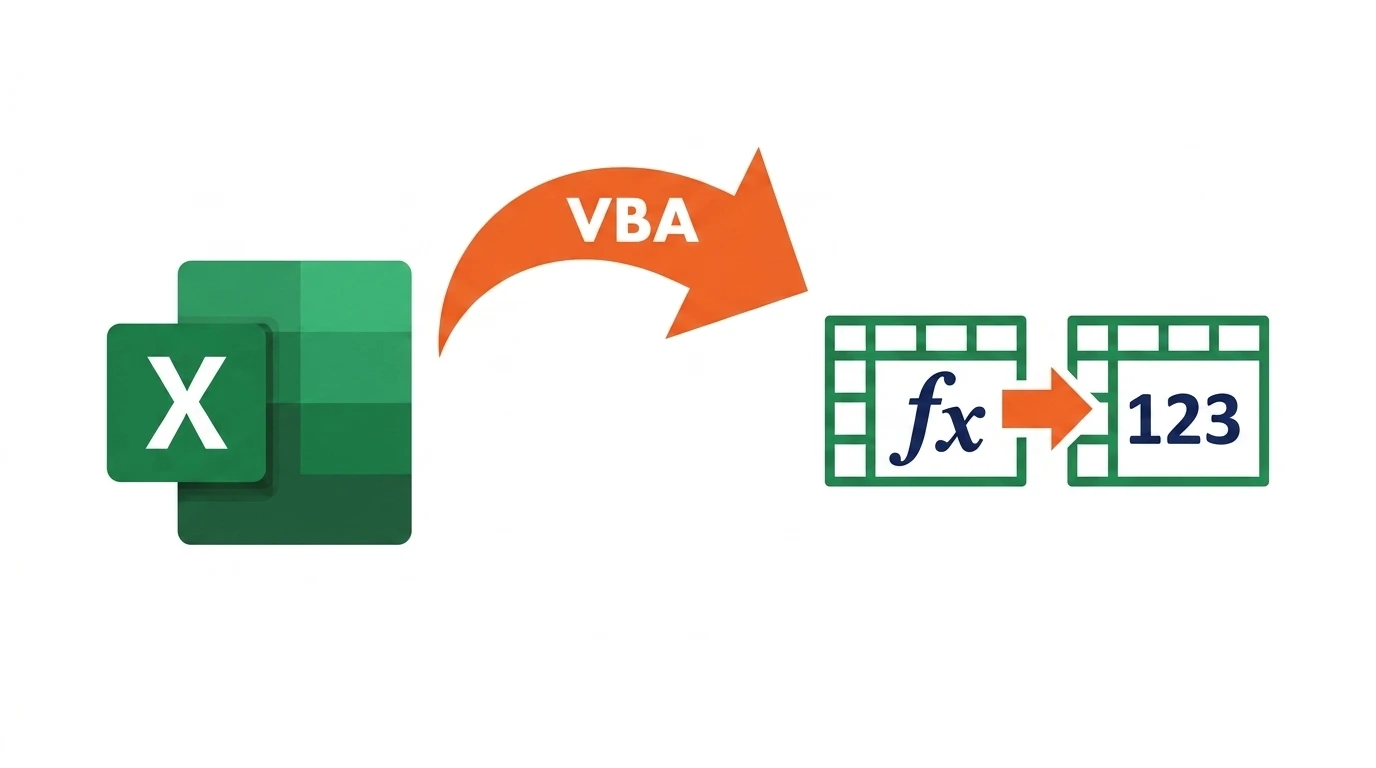
The vba copy paste values only pattern replaces live formulas with their last calculated result — the correct way to freeze a formula-driven schedule before archiving it, so it never recalculates against a source that has since changed.

ACA | FMVA® | 19 Years in Finance
This guide is part of the FinDataPro Excel VBA Workbook Events series.
The One-Line Value Trick
For stripping formulas in place, on the same range:
Option Explicit

Sub FreezeScheduleInPlace()
    Dim rng As Range
    Set rng = ThisWorkbook.Sheets("Amortisation").Range("B2:M13")

    rng.Value = rng.Value
End Sub
One line, no clipboard involved — every formula in the range is replaced with its last calculated number.
Download the Example Workbook — Free
The working .xlsm file with a sample amortisation schedule and this freeze-in-place macro already wired up — run it and watch the formulas turn static.
Where the Code Goes
This lives in a standard module, typically run once at month-end just before archiving a workbook, or from Workbook_BeforeClose so schedules are always frozen automatically the moment the file closes.
Finance Use Case: Archiving a Frozen Schedule
An amortisation or accrual schedule that stays formula-driven after archiving is a liability — if the source workbook it references is later moved, renamed, or deleted, every archived copy recalculates to errors or blanks. Freezing the range to static values the moment it is archived guarantees the historical record never changes again, regardless of what happens to the source file.
Auditors specifically care about this distinction: a schedule that recalculates every time it is opened is not a reliable record of what was reported in a given period, since the numbers can silently drift if any upstream input changes later. A frozen, value-only archive removes that ambiguity entirely — whoever opens the file next month, next year, or during an audit sees exactly the same figures that were true the day it was archived, with no dependency on files or formulas that may no longer exist.
Copying Values Across Sheets
When the destination is a different range or sheet, not the same cells, use PasteSpecial instead:
ThisWorkbook.Sheets("Live").Range("B2:M13").Copy
ThisWorkbook.Sheets("Archive").Range("B2").PasteSpecial xlPasteValues
Application.CutCopyMode = False
Application.CutCopyMode = False clears the marching-ants clipboard selection afterward — easy to forget, harmless to skip, but tidier to include.
Common Mistakes
Most issues with this pattern come from confusing the two closely related methods above, or running the freeze step before the schedule is actually finished.
- Using
rng.Value = rng.Valuewhen the destination is actually a different range — this only overwrites a range with its own values, it does not move data anywhere. - Forgetting
Application.CutCopyMode = Falseafter aPasteSpecial, leaving the clipboard marquee active. - Assuming formatting is lost — it is not; only the formula itself is replaced with its result.
- Running this on a live, still-in-use schedule by accident, permanently losing the underlying formulas with no undo path once the file is saved and closed.
Related Guides on This Series
To automate this on close, see Workbook_BeforeClose, or pair it with Loop Through Worksheets to freeze every monthly tab in one pass rather than one range at a time.
Full reference: Microsoft Learn Range.PasteSpecial method reference.
Frequently Asked Questions
What is the shortest way to strip formulas from a range?
rng.Value = rng.Value — one line, no clipboard, replaces formulas with static values in place.
Why use PasteSpecial instead of the Value trick?
PasteSpecial is needed when the destination is a different range or sheet — the Value trick only overwrites a range with its own values.
Does this remove formatting too?
No — formatting stays untouched, only the formula itself is replaced with its calculated result.
Does this break if a formula references outside the range?
No — the calculated result is pasted, so external references become irrelevant once the value is static.
Conclusion
A single rng.Value = rng.Value line freezes a schedule permanently before archiving, with PasteSpecial xlPasteValues as the cross-sheet equivalent. Pair either with Workbook_BeforeClose so archiving never depends on someone remembering to run it manually.
Prashant Panchal is a Chartered Accountant (ACA) and Financial Modelling & Valuation Analyst (FMVA®) with 19 years of experience in finance, FP&A, and financial modelling across the GCC region. He is the founder of FinDataPro.
Discussion
Leave a Comment
Comments are moderated and appear once approved.