
VBA Export to PDF: Auto-Generate Individual Payslips
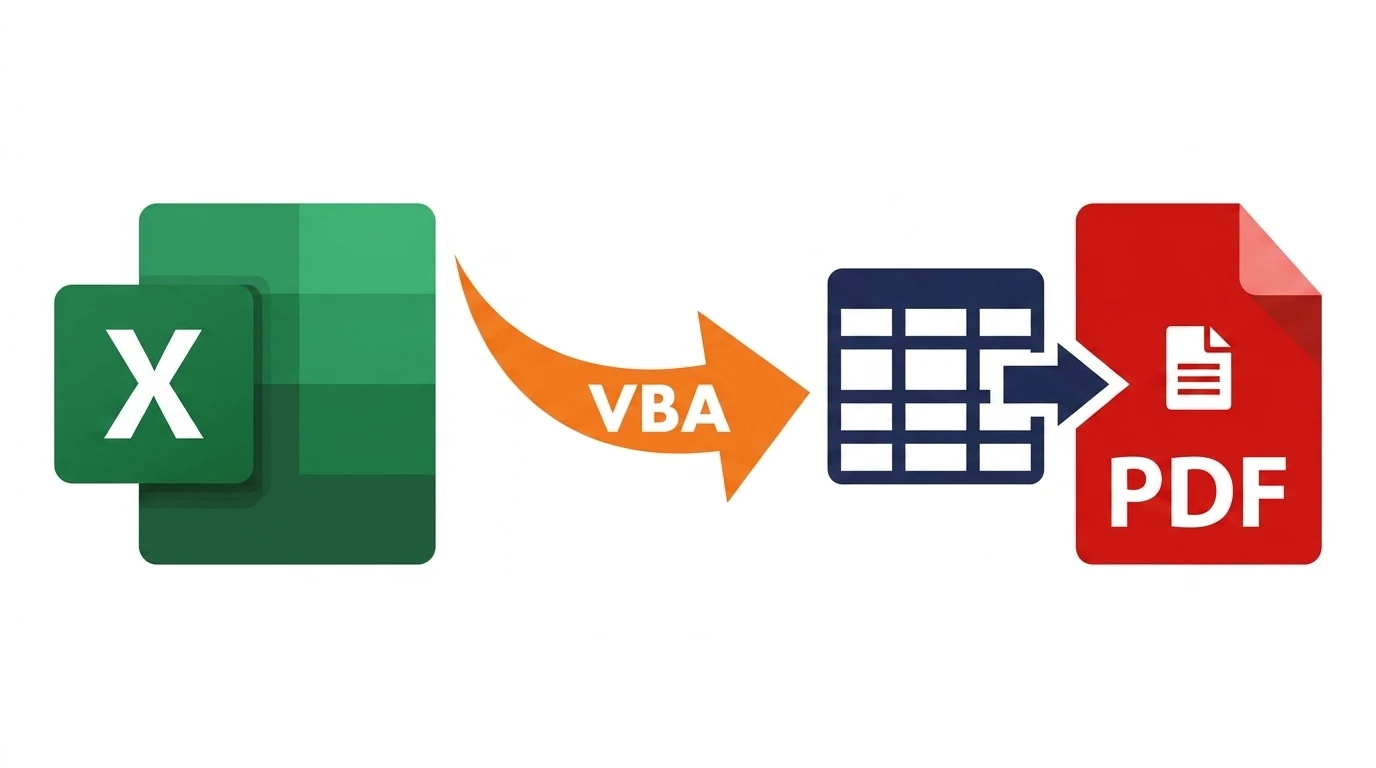
The vba export to pdf pattern loops a list of names, drops each one into a template, and calls ExportAsFixedFormat once per row — turning one payslip template and an employee list into a folder full of individually named PDFs in seconds.

ACA | FMVA® | 19 Years in Finance
This guide is part of the FinDataPro Excel VBA Workbook Events series.
The Export-Per-Row Loop
Run this against a payslip template and an employee list:
Option Explicit

Sub ExportPayslipsToPDF()
    Dim wsTemplate As Worksheet
    Dim wsList As Worksheet
    Set wsTemplate = ThisWorkbook.Sheets("PayslipTemplate")
    Set wsList = ThisWorkbook.Sheets("EmployeeList")

    Dim outputFolder As String
    outputFolder = ThisWorkbook.Path & "\Payslips\"
    If Dir(outputFolder, vbDirectory) = "" Then MkDir outputFolder

    Dim lastRow As Long
    lastRow = wsList.Cells(wsList.Rows.Count, "A").End(xlUp).Row

    Dim i As Long, safeName As String, pdfPath As String
    For i = 2 To lastRow
        wsTemplate.Range("B1").Value = wsList.Cells(i, "A").Value ' Employee Name
        wsTemplate.Range("B2").Value = wsList.Cells(i, "B").Value ' Period
        Application.Calculate

        safeName = Replace(wsList.Cells(i, "A").Value, " ", "_")
        pdfPath = outputFolder & safeName & ".pdf"

        wsTemplate.ExportAsFixedFormat Type:=xlTypePDF, Filename:=pdfPath, _
            OpenAfterPublish:=False
    Next i

    MsgBox (lastRow - 1) & " payslips exported.", vbInformation
End Sub
Each loop iteration overwrites the two input cells, forces a recalculation, then exports before moving to the next employee.
Download the Example Workbook — Free
The working .xlsm file with a sample payslip template and this export loop already wired up — run it and find a folder full of individually named PDFs.
Where the Code Goes
This lives in a standard module and pairs directly with Loop Through Worksheets if each employee's data instead lives on its own tab rather than a single row in a list.
Finance Use Case: Payslips and Invoices Without a Payroll System
Smaller finance teams often generate payslips or ad-hoc invoices directly in Excel rather than a dedicated payroll platform. Doing this manually means opening the template, retyping one employee's details, printing to PDF, and repeating — for every single person, every single period. The export loop above does the identical work in one run, naming each file after the employee so nothing needs manual renaming afterward.
The manual version of this task also scales the wrong way — doubling the headcount doubles the manual effort exactly, with no economy of scale at all, while the loop's runtime barely changes whether it is generating five payslips or fifty. That difference becomes the entire argument for automating it the moment a team crosses from a handful of employees into double digits, well before a full payroll platform is either affordable or justified.
Exporting Only a Specific Range
ExportAsFixedFormat exports the sheet's defined print area, not necessarily the whole sheet. Set it explicitly before exporting if the template has extra working cells outside the payslip layout itself:
wsTemplate.PageSetup.PrintArea = "A1:D20"Skip building the schedule that feeds the payslip
FinDataPro Prepaid Amortisation Engine generates the underlying monthly figures automatically, so this export loop has clean numbers to turn into PDFs in the first place.
See the Prepaid Amortisation EngineCommon Mistakes
- Forgetting
Application.Calculatebefore the export, so every generated PDF shows the same first employee's data. - Leaving
OpenAfterPublishat its default, which opens dozens of PDF windows during a large batch run. - Not creating the output folder first —
ExportAsFixedFormatfails silently into an error if the target folder does not exist. - Using unescaped characters (like
/) straight from an employee name in the file path, which breaks the file system path.
Related Guides on This Series
See Send Email From Excel via Outlook to email each generated PDF automatically instead of just saving it, or Loop Through Worksheets if your source data is tab-per-record rather than row-per-record.
Full reference: Microsoft Learn Worksheet.ExportAsFixedFormat method reference.
Frequently Asked Questions
Can I export a specific range instead of the whole sheet?
Yes — set the range as PageSetup.PrintArea first, then export the worksheet; only that area is included.
Why does every PDF show the same data?
Excel hasn't recalculated before the export — add Application.Calculate immediately before ExportAsFixedFormat inside the loop.
How do I stop each PDF opening automatically?
Set OpenAfterPublish to False — left at default it opens every generated file in your PDF viewer.
Can I export multiple sheets into one combined PDF?
Yes — select all the sheets with Sheets(Array(...)).Select, then export once rather than looping per sheet.
Conclusion
One template, one list, and a loop around ExportAsFixedFormat replaces an entire afternoon of manual PDF generation. Force a recalculation before every export, and pair this with Send Email From Excel via Outlook to deliver each PDF automatically once it's generated.
Prashant Panchal is a Chartered Accountant (ACA) and Financial Modelling & Valuation Analyst (FMVA®) with 19 years of experience in finance, FP&A, and financial modelling across the GCC region. He is the founder of FinDataPro.
Discussion
Leave a Comment
Comments are moderated and appear once approved.