
VBA Workbooks.Add: Create a New Workbook From a Template
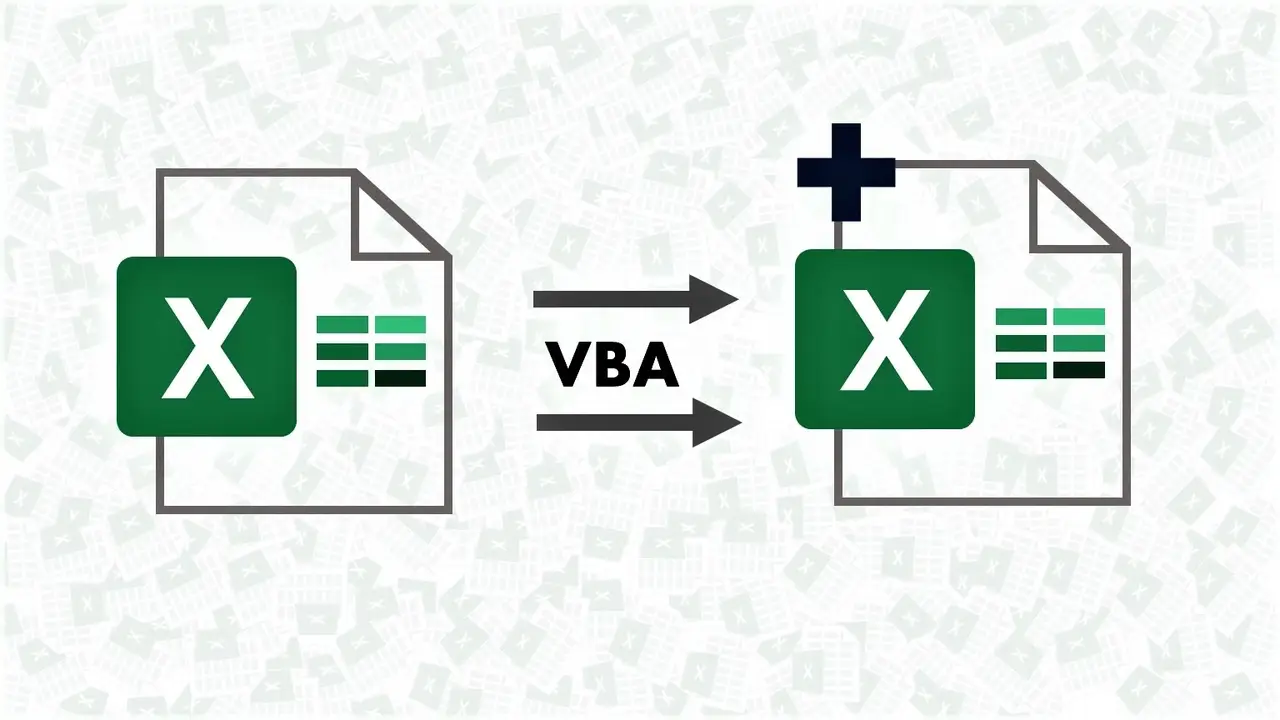
The VBA Workbooks.Add method creates a new workbook from code — blank, or based on a template file — so a fresh month-end working file is one macro away instead of a manual File > New and a hunt for last month's formatting.

ACA | FMVA® | 19 Years in Finance
This guide is part of the FinDataPro Excel VBA Workbook Events series.
What Is Workbooks.Add?
Run this from any standard module:
Option Explicit

Sub CreateMonthEndFile()
    Dim wbNew As Workbook
    Dim templatePath As String
    Dim savePath As String

    templatePath = "C:\Templates\MonthEndClose.xltx"
    savePath = "C:\MonthEnd\MonthEndClose_" & Format(Date, "mmm-yyyy") & ".xlsx"

    If Dir(savePath) <> "" Then
        MsgBox "A file for this month already exists.", vbExclamation
        Exit Sub
    End If

    Set wbNew = Workbooks.Add(Template:=templatePath)
    wbNew.SaveAs Filename:=savePath, FileFormat:=xlOpenXMLWorkbook
End Sub
One call, one new workbook, already carrying the template's formatting, named consistently, and never silently overwriting a file that already exists for the month.
Download the Example Workbook — Free
The working .xlsm file with this Workbooks.Add macro already wired up — open it, inspect the standard module, and point it at your own template.
Workbooks.Add vs. Workbooks.Open
Workbooks.Add creates something new and unsaved. Workbooks.Open opens something that already exists on disk. Confusing the two is the most common reason this method gets misused — reaching for Add when the real goal was to open an existing file, or vice versa.
Finance Use Case: Month-End File Creation
A recurring close template with the same tabs, formulas, and formatting every month should never be recreated by copy-pasting last month's file and manually clearing the numbers — that is how stale formulas and leftover data survive into a new period. Workbooks.Add(Template:=path) always starts from the clean template, every time, with zero risk of carrying forward last month's numbers by accident.
Naming the File Safely
Baking Format(Date, "mmm-yyyy") into the filename means every month gets its own file automatically, without anyone typing a filename by hand and getting the month wrong. Checking Dir(savePath) before saving is the guard that stops a rerun of the macro from silently clobbering a file that a colleague has already started working in.
Template Format: .xltx vs. .xltm
If the template itself needs to carry macros — for example, its own Workbook_Open event to refresh links on creation — save it as .xltm, not .xltx. The macro-free template format silently drops any VBA the template file contained.
Common Mistakes
- Hardcoding the template path with no check that the file still exists at that location.
- Skipping the
Dir()existence check and overwriting a colleague's in-progress file. - Using
.xltxfor a template that actually needs its own macros. - Not setting
FileFormatexplicitly on SaveAs, which can save as the wrong file type depending on the user's default settings.
Related Guides on This Series
Once the new working file exists, see GetOpenFilename for a safer way to pull the source data into it, or Close Workbook Without Saving once you are batch-generating several of these files in one run and need to close each cleanly afterward.
Full reference: Microsoft Learn Workbooks.Add method reference.
Still calculating prepaid amortisation by hand each month?
FinDataPro Prepaid Amortisation Engine handles partial months, mid-contract terminations, and multi-contract tracking automatically — no monthly template rebuild required.
See the Prepaid Amortisation EngineFrequently Asked Questions
What is the difference between Workbooks.Add and Workbooks.Open?
Add creates a brand-new, unsaved workbook — blank or from a template. Open loads an existing saved file from disk.
Does Workbooks.Add(Template:=path) work with .xlsx templates?
Yes, but no macros carry over since .xlsx cannot store VBA. Use .xltm if the template needs its own macros.
How do I stop this from overwriting last month's file?
Add never touches disk by itself. Build the filename with month and year included, and check Dir() before SaveAs.
Can I add sheets from multiple template files?
Add only takes one template. Create the workbook blank, then use Worksheets.Copy from each source file into it.
Conclusion
Workbooks.Add turns a recurring “copy last month's file” ritual into one line of code that always starts clean. Point it at an .xltm if macros need to travel with the template, bake the month into the filename, and guard the SaveAs with a Dir() check. For the amortisation schedule that often lives inside that file, see the Prepaid Amortisation Engine.
Prashant Panchal is a Chartered Accountant (ACA) and Financial Modelling & Valuation Analyst (FMVA®) with 19 years of experience in finance, FP&A, and financial modelling across the GCC region. He is the founder of FinDataPro.
Discussion
Leave a Comment
Comments are moderated and appear once approved.