
Fixed Asset Depreciation Calculator for Excel
Most accountants inherit their fixed asset register rather than build one.
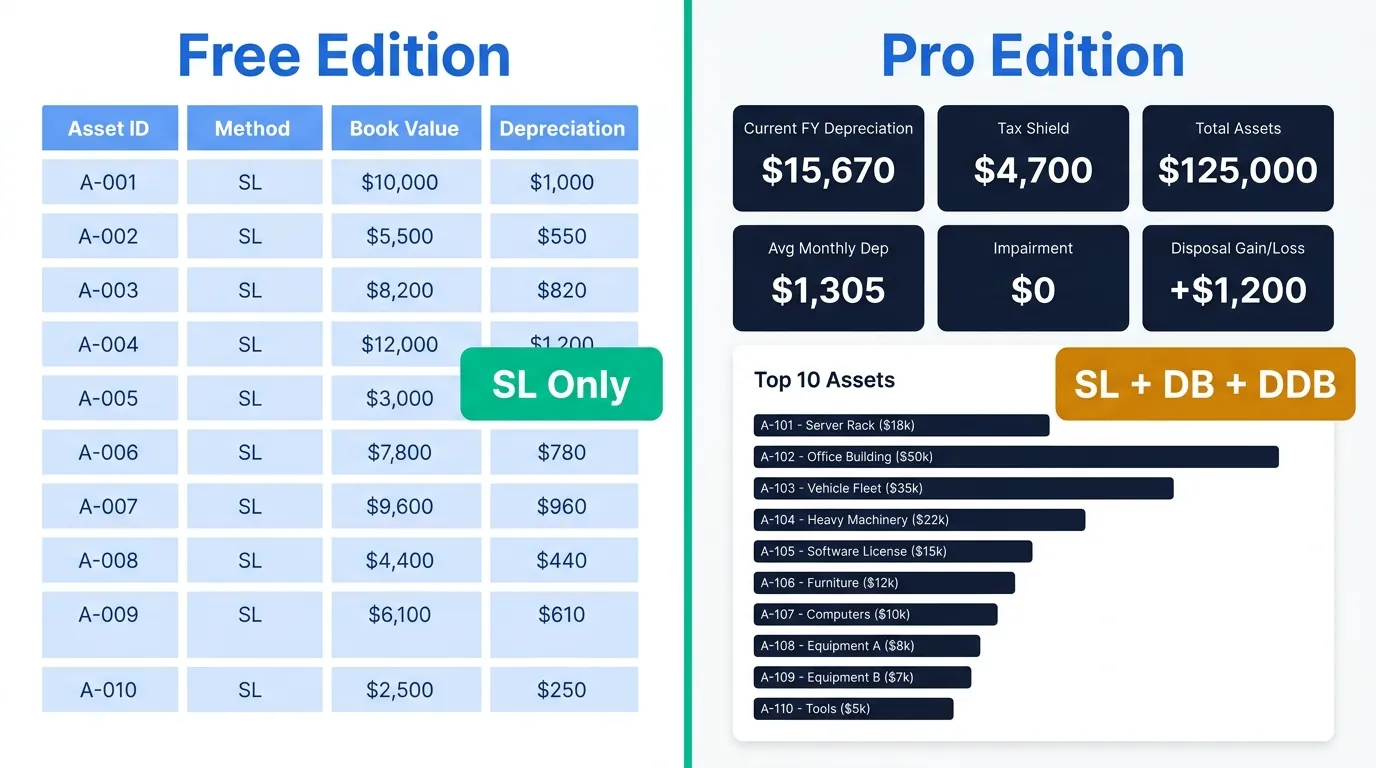
This page gives you a free Excel calculator for Straight Line depreciation across 10 assets with a validation engine, monthly output, and zero-formula input. And a Pro Edition that adds Declining Balance, Double Declining Balance, a live dashboard, and 50-asset capacity.
Built by a practising CFO. Not a tutorial. Not a textbook. A register built to survive an audit.
See the Template in Action
From blank INPUT tab to a fully calculated depreciation register with dashboard and Power Query report — in one go.
What Is a Fixed Asset Depreciation Calculator — and Why Your Current One Is Probably Failing You
A fixed asset depreciation calculator is a structured tool that takes asset inputs — cost, purchase date, salvage value, useful life, and method — and produces a complete monthly depreciation schedule.
The problem is not understanding what depreciation is. Every accountant knows what depreciation is. The problem is calculating it correctly in the real world.
An asset has a capital improvement part-way through its life that extends both the remaining life and the salvage value
An asset is impaired in one period and disposed of in a later period and you need the exact gain or loss at that disposal date
You are running two depreciation methods on the same asset: SL for financial reporting and DB for tax, and the registers have drifted apart
Your month-end close is tomorrow and the junior has sent you a file with broken VLOOKUP references
Standard Excel templates downloaded from Google handle none of this. They give you a straight-line schedule for one asset and leave the rest to you. These templates handle all of it.
The Free Template — What You Get and What It Cannot Do
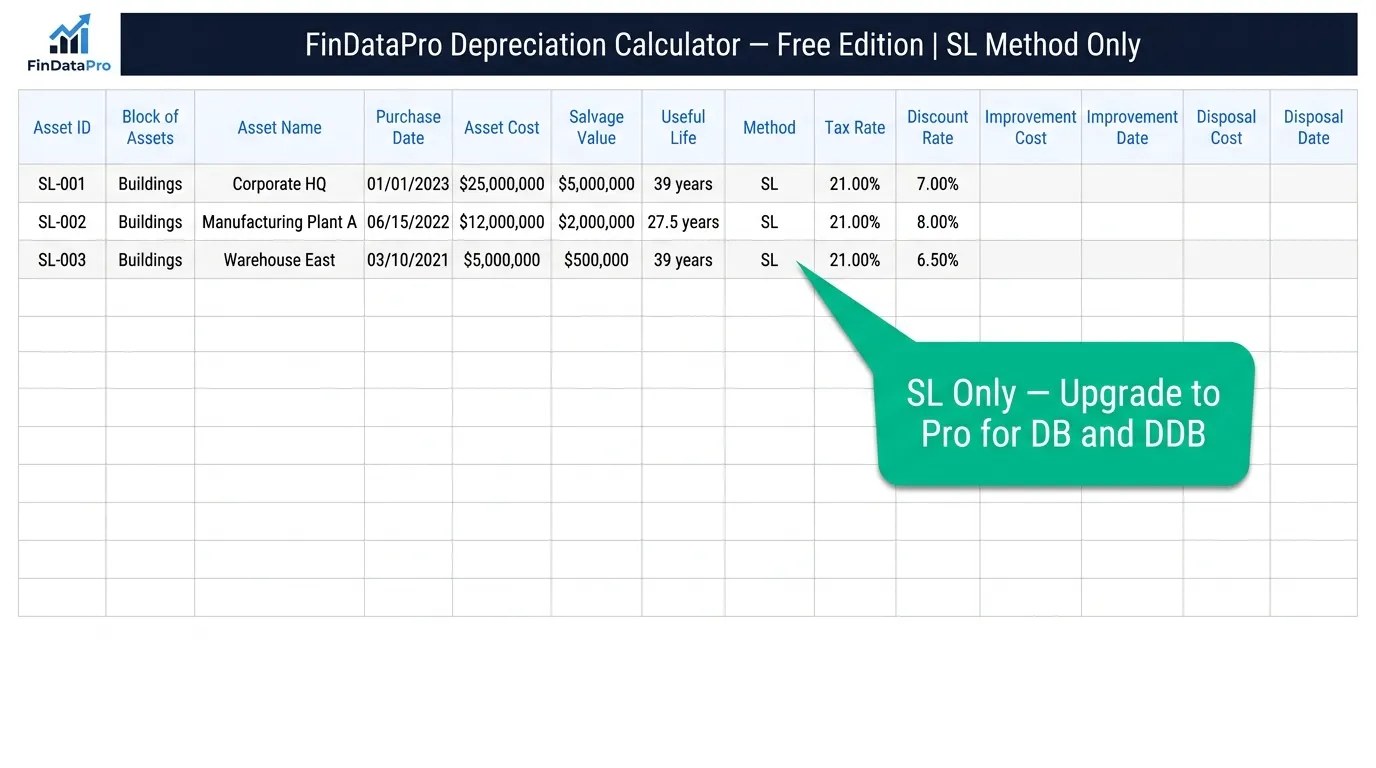
What the Free Template Contains
The free template has four tabs, each serving a specific function:
Enter Asset ID, block, name, purchase date, cost, salvage value, useful life, tax rate, and discount rate. Capital improvement and disposal fields are present. Method is locked to SL for all 10 assets.
Fully calculated monthly depreciation schedule. Columns: Asset ID, Block, Method, Year, Month, Opening Book Value, Depreciation Charge, Impairment Loss, Accumulated Depreciation, Net Book Value, Disposal Proceeds, Gain/Loss, Tax Shield, Remaining Months.
Automatically checks every asset for data integrity errors. Flags missing dates, cost/salvage value issues, and logic conflicts before they corrupt your schedule — tells you exactly what is wrong and which row to fix.
Backend data layer feeding summary metrics: total depreciation by block, tax shield, impairment losses, and disposal gain/loss.
What the Free Template Cannot Do
| Limitation | Impact |
|---|---|
| SL method only | Cannot model accelerated depreciation for IT equipment, machinery, or any asset where management or tax rules require a declining balance approach |
| 10-asset cap | Fine for a small SME or a single project. Not enough for a real asset register |
| No Dashboard | Metrics are available in the PivotEngine tab but there is no formatted management view |
| No Power Query report | No Fiscal Year / Quarter / Month slicing for reporting and analysis |
| No multi-method comparison | Cannot show SL vs DB side-by-side for the same asset |
Download the Free Template
Straight Line depreciation for up to 10 assets. Validation engine included.
The Pro Edition — Full Feature Breakdown
Built for a real finance department — or for any SME owner who needs a register that stands up in an audit without manual intervention.
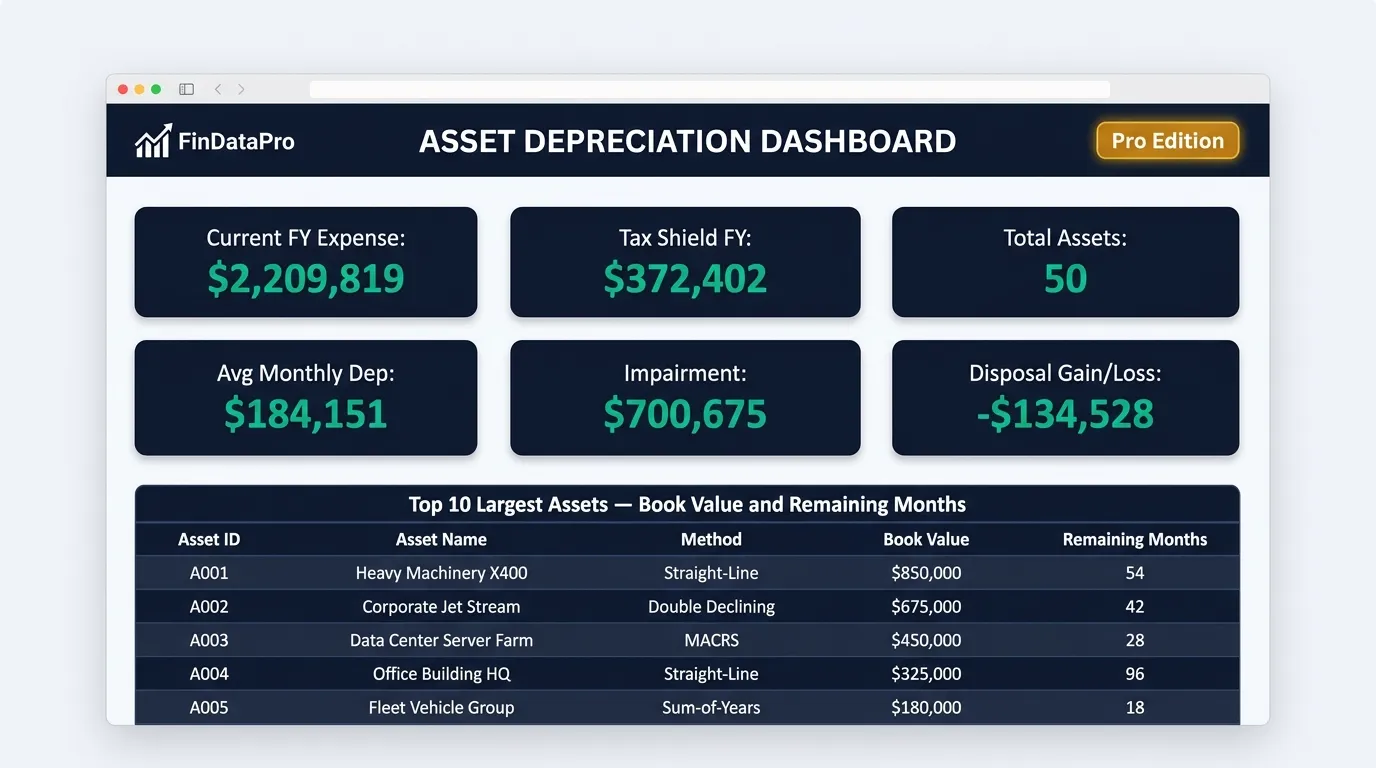
7 Tabs, Each Serving a Specific Function
Same structure as the free version but with capacity for 50 assets across any combination of SL, DB, and DDB. The DB Factor column activates for DB and DDB assets, letting you set 150% or 200% declining balance per asset.
Full monthly schedule for all 50 assets — identical column structure to the free version, extended to the full asset population.
Live management view. Displays Current FY depreciation expense, Tax shield, Total assets, Average monthly depreciation, Total impairment, Total disposal gain/loss, and a Top 10 Largest Assets by Net Book Value table with remaining useful life.
Backend data layer feeding the Dashboard and Detailed Report.
Asset-level monthly pivot grouped by Block, Asset ID, and Year-Month. Columns: Opening Book Value, Depreciation Charge, Accumulated Depreciation, Net Book Value, Disposal Proceeds, Gain/Loss, Salvage Value, Tax Shield, Impairment.
The most powerful output tab. Built on Power Query — adds Fiscal Year, Fiscal Quarter, Month Name, Year-Month label, Depreciation Type (Linear vs Accelerated), Event Category (Acquisition / Operating / Disposal / Impairment), Is Fully Depreciated flag, and Remaining Value. Connect this tab directly to Power BI.
Same engine as the free version — extended to 50 assets, with warning flags for DDB rate confirmation in addition to error checking.
The Three Methods in Detail
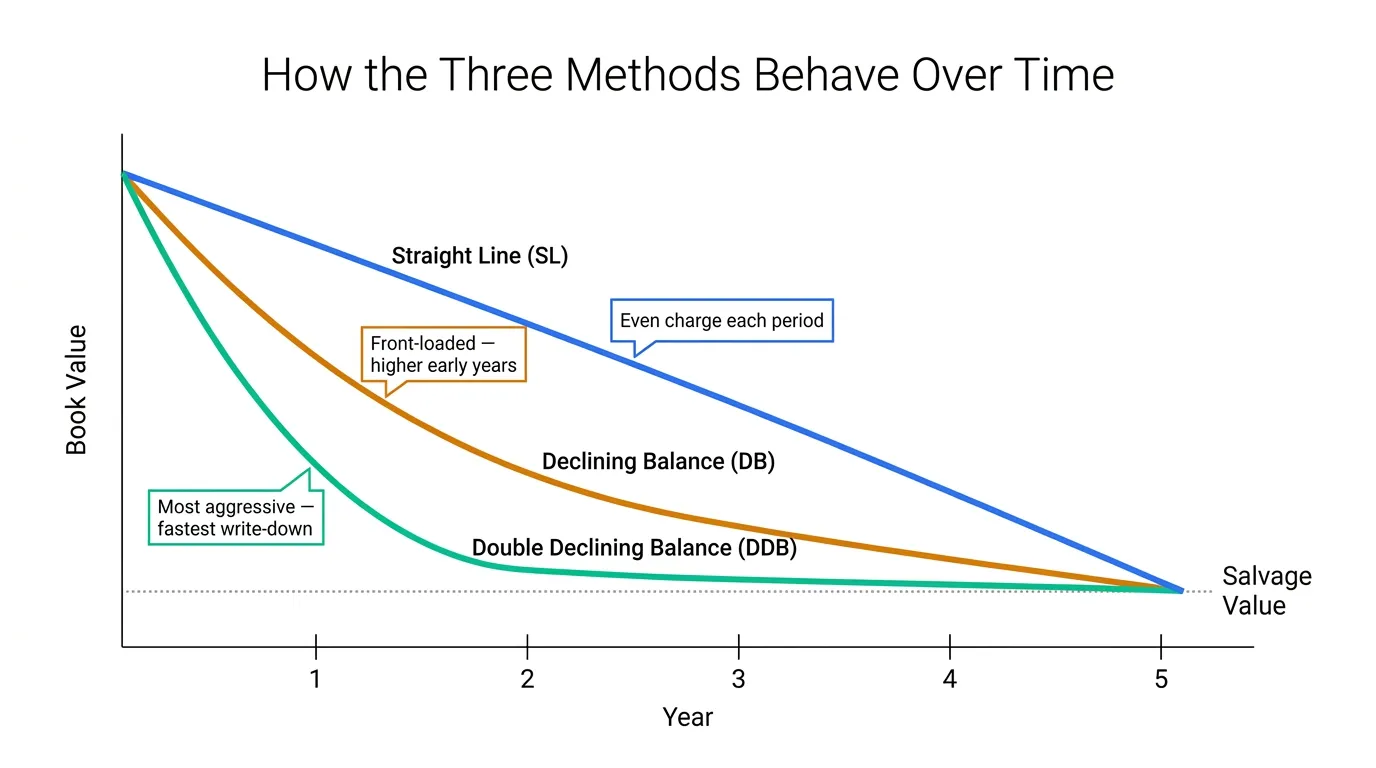
The Pro Edition covers three depreciation methods. Here is what each does and when to use it.
Straight Line (SL)
Default under IAS 16The simplest method. Depreciation charge is equal every period for the entire useful life.
When to use it: Buildings, leasehold improvements, furniture — assets that wear evenly and where budget consistency matters.
In the template: Capital improvements extend the remaining useful life from the improvement date. Impairments reduce book value immediately, with depreciation recalculated on the new lower base. Disposals calculate gain or loss as proceeds minus closing book value.
Declining Balance (DB)
Configurable DB FactorDepreciation charge is a fixed percentage of the opening book value each period. Produces a front-loaded charge that decreases over time.
When to use it: Machinery, vehicles, and industrial equipment where the economic benefit is highest in early years. Also used in GCC and Indian jurisdictions for specific asset blocks under local tax regulations.
DB Factor in the Pro template: Set per asset in the INPUT tab. Factor 1.0 replicates straight-line on book value (WDV style). Factor 1.5 gives 150% declining balance. Factor 2.0 gives double declining balance.
Double Declining Balance (DDB)
Most aggressiveThe most aggressive accelerated method. Rate is exactly double the straight-line rate, applied to opening book value each period.
When to use it: IT equipment, server infrastructure, software hardware — assets that become functionally obsolete long before the end of their technical useful life.
DDB in the template: The Validation Report confirms the effective annual rate (e.g., 40% per year for a 5-year asset at 2x) — exactly what an auditor will ask for.
Get the Pro Edition
SL + DB + DDB. 50 assets. Live dashboard. Power Query report. Audit-ready.
Free vs Pro — Full Comparison
Every feature, side by side.
| Feature | Free Edition | Pro Edition |
|---|---|---|
| Asset capacity | 10 assets | 50 assets |
| Methods covered | SL only | SL, DB, DDB |
| Capital improvements | ||
| Mid-year disposals with gain/loss | ||
| Impairment tracking | ||
| Tax shield calculation | ||
| Validation engine | Extended | |
| Live Dashboard (KPI view) | — | |
| Detailed Pivot Report | — | |
| Power Query enhanced report | — | |
| Fiscal Year / Quarter slicing | — | |
| Event Category flags | — | |
| Top 10 assets by book value | — | |
| Configurable DB Factor | — | |
| Price | Free | $36.99 Buy Now |
The Limitations of Any Excel Template, and Where DepreciationLab Comes In
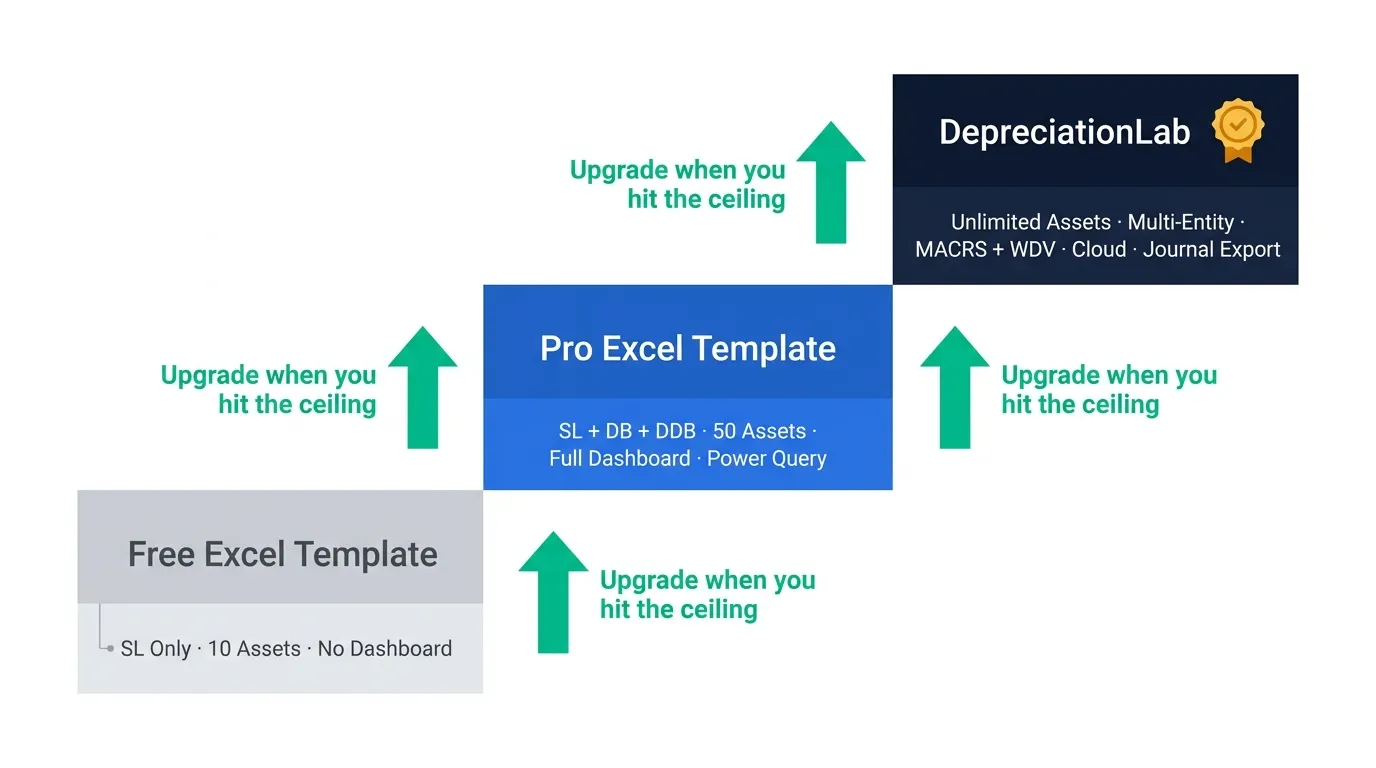
The Pro template is a serious tool. But it is still an Excel file, and Excel files have structural ceilings that no amount of VBA or Power Query can fully remove.
Asset limit
The Pro template handles 50 assets. A register with 200+ assets across 4 blocks does not scale without a rebuild. DepreciationLab Professional handles 150 manual assets plus bulk Excel upload of up to 4,000.
Bulk import and one engine
Rebuilding schedules asset by asset in Excel does not scale. DepreciationLab imports your full register from one Excel template and runs every asset through the same audited calculation engine.
Audit-ready exports
The template gives you the numbers. DepreciationLab adds audit workpapers and multi-sheet Excel exports, including an IRS Form 4562 worksheet and WDV block summaries, ready to hand to the auditor.
MACRS and WDV (Indian Income Tax Act)
The three methods in the Pro template are the most widely-used globally. MACRS (US) and WDV under the Indian Income Tax Act are in DepreciationLab, not the template.
No file corruption risk
Large Excel files break. Data connections drop. Someone overwrites a formula. DepreciationLab stores your register in the cloud with real-time sync across devices and user-level data isolation.
Collaboration
The template is a single-user file. DepreciationLab allows multiple users on the same register with role-based access.
DepreciationLab has a free plan
Covers the most common methods and up to 10 assets at no cost — same footprint as the free Excel template, but without the Excel dependency.
How to Use the Pro Template in 4 Steps
From blank file to calculation-ready register.
Set company name and fiscal year
Enter your company name in cell B3, fiscal start month in B4, and fiscal end month in C4 of the INPUT tab header row.
Enter your assets
Fill Asset ID, Block, Asset Name, Purchase Date, Cost, Salvage Value, Useful Life, Method (SL / DB / DDB), DB Factor, Tax Rate, and Discount Rate. Optional: capital improvement, impairment, and disposal fields.
Check the Validation Report
Fix any errors flagged in red before reading output tabs. Yellow DDB warnings are informational — they confirm the effective annual rate your DB Factor produces.
Read your results
OUTPUT for the full monthly schedule. DASHBOARD for the management view. DETAILED REPORT for block/asset/month pivot. PQ_REPORT for Power Query analysis and Power BI connection.
Frequently Asked Questions
Can I use this template for multiple companies?
The Pro template is designed for a single company. You can duplicate the INPUT/OUTPUT structure manually for a second entity, but there is no consolidated view across companies. For multi-entity depreciation, use DepreciationLab.
Is the VBA code locked in the Pro template?
Yes. The calculation engine is protected to preserve formula integrity. The INPUT tab is fully open for data entry, and the OUTPUT, DASHBOARD, and REPORT tabs refresh automatically.
Can I add more than 50 assets to the Pro template?
The Pro template is built for 50 assets. Extending it beyond 50 requires manual structural changes to the VBA engine, which is locked. If you need a larger register, DepreciationLab handles 150 manual assets plus bulk Excel upload of up to 4,000.
What is the difference between DB and DDB in this template?
Both use declining balance logic: a fixed percentage applied to the opening book value each period. DDB uses exactly double the straight-line rate (DB Factor = 2.0). DB allows any factor (1.0, 1.5, or 2.0) depending on your depreciation policy. The Validation Report confirms the effective annual rate for every DDB asset.
Does the template handle part-year depreciation?
Yes. The template calculates depreciation from the exact purchase date, not from the start of the year. A vehicle purchased in September charges three months of depreciation in its first fiscal year. The same applies to capital improvements — the improvement-adjusted charge begins from the improvement date.
What happens to the depreciation schedule after an impairment?
The impairment reduces the book value on the impairment date. From that date forward, depreciation is recalculated on the new lower book value across the remaining useful life. The original depreciation charge does not carry forward unchanged.
Does the free template include the Power Query report?
No. The free template uses a PivotEngine backend for summary figures, but the full Power Query enhanced report (with Fiscal Year, Quarter, Month Name, Depreciation Type, and Event Category flags) is a Pro-only feature.
Is there a refund policy on the Pro template?
Yes. Purchases through Lemon Squeezy include a standard 30-day refund window. Contact support with your order reference.
What methods does DepreciationLab support that this template does not?
DepreciationLab supports all 7 methods: SL, DB, DDB, Units of Production, Component (IAS 16), MACRS (US), and WDV under the Indian Income Tax Act. The Pro Excel template covers SL, DB, and DDB only.
Can I connect the PQ Report tab to Power BI?
Yes. The PQ_Report tab is a flat, structured output table, ideal for Power BI connection via the Excel data source. Refresh the template in Excel, then refresh your Power BI dataset.
External references: IAS 16 Property Plant and Equipment · Excel DB function documentation
Own Your Asset Register Before It Owns You
Depreciation is not a compliance checkbox. It is the mechanism by which your capital investment moves through your P&L, shapes your tax position, and signals to a bank or auditor whether your balance sheet reflects reality or fiction.
A broken register is a risk, not just an inconvenience.
Free Template
SL depreciation for up to 10 assets. Validation engine, monthly schedule, disposal and impairment logic. More capable than anything on a generic download site.
Pro Edition
$36.99
SL + DB + DDB. 50 assets. Live dashboard, Detailed Pivot Report, and Power Query report built for management and audit use.
Buy Pro Template — $36.99DepreciationLab
Cloud-based. No Excel required. Unlimited assets, multi-entity, MACRS, WDV, journal export. Free plan available for up to 10 assets.
Try DepreciationLab FreeThe number is guilty until proven innocent. Start with a register that can actually prove it.
Have a Question Before You Download?
Fill in your name and what you'd like to discuss, then hit the button to open WhatsApp.
Typically replies within a few hours during business hours (GST)
Get Free Excel & Finance Templates
Start with our free toolkit — practical templates and guides used by 8,600+ finance professionals. No fluff, just tools that work.
Excel & Power BI templates
Ready to use, fully documented
Video courses included
Step-by-step from a finance professional
Instant download
No waiting, no subscription required