
GSTR-2B Reconciliation in Excel: 3-Pass Automated Guide for CAs (2026)
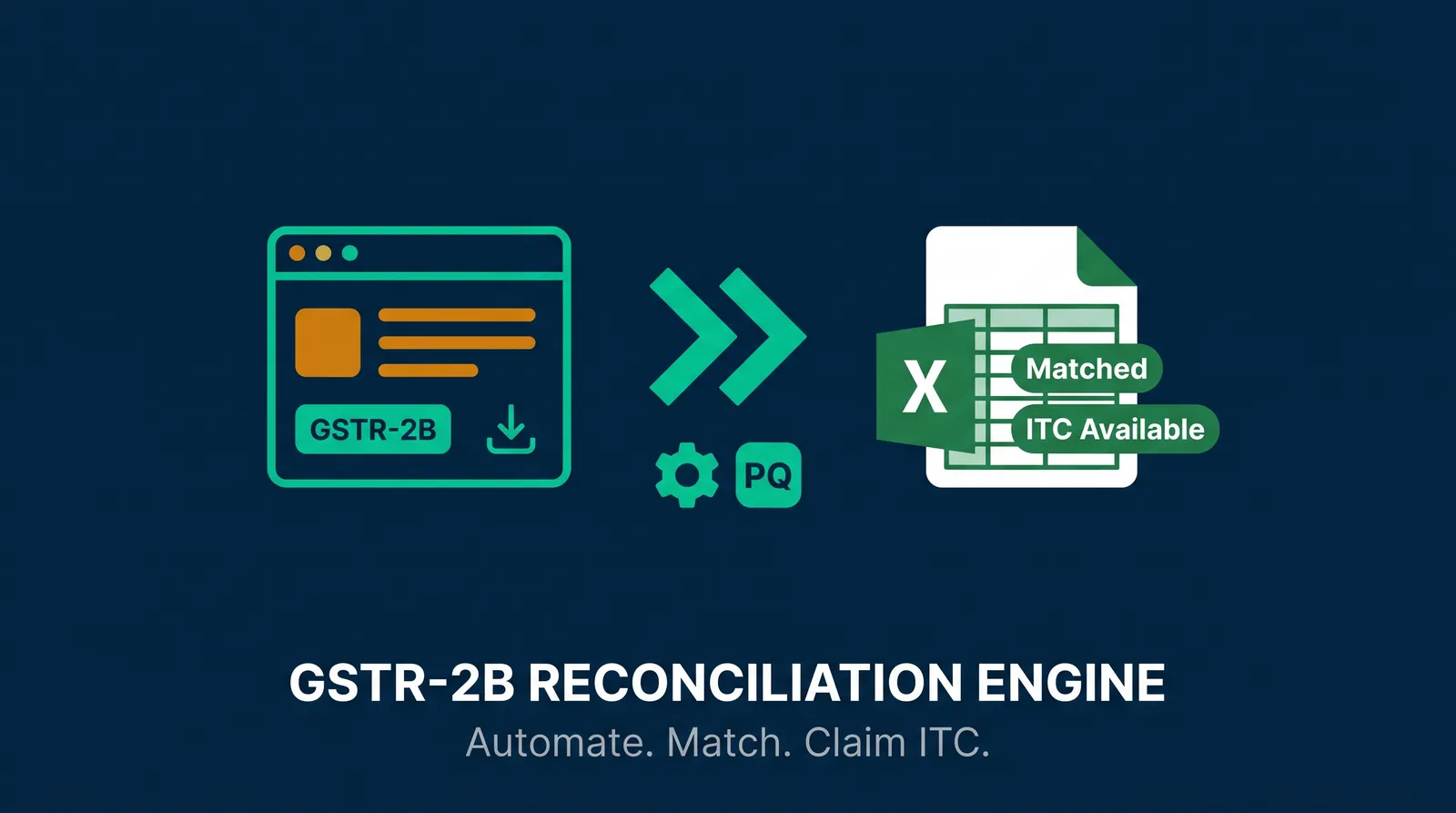
If your team is still spending two or three days every month on GSTR-2B reconciliation — copying portal data, running VLOOKUPs, chasing invoice number mismatches — this guide will change your monthly close. We built a production-ready GSTR-2B Reconciliation Engine in Excel and Power Query that matches every invoice through a three-pass algorithm and produces audit-ready output in under sixty seconds.
No macros. No coding. One refresh. This article walks through the complete setup, every output category, and the edge cases that trip up most teams — including IMS rejected invoices, cross-state GSTIN mismatches, and multi-ERP purchase registers.
The engine imports your GSTR-2B from the GST portal and one or more purchase register exports, then returns a categorised reconciliation table with an action flag on every invoice row.

ACA | FMVA® | 19 Years in Finance
Why GSTR-2B Reconciliation Breaks Down Every Month
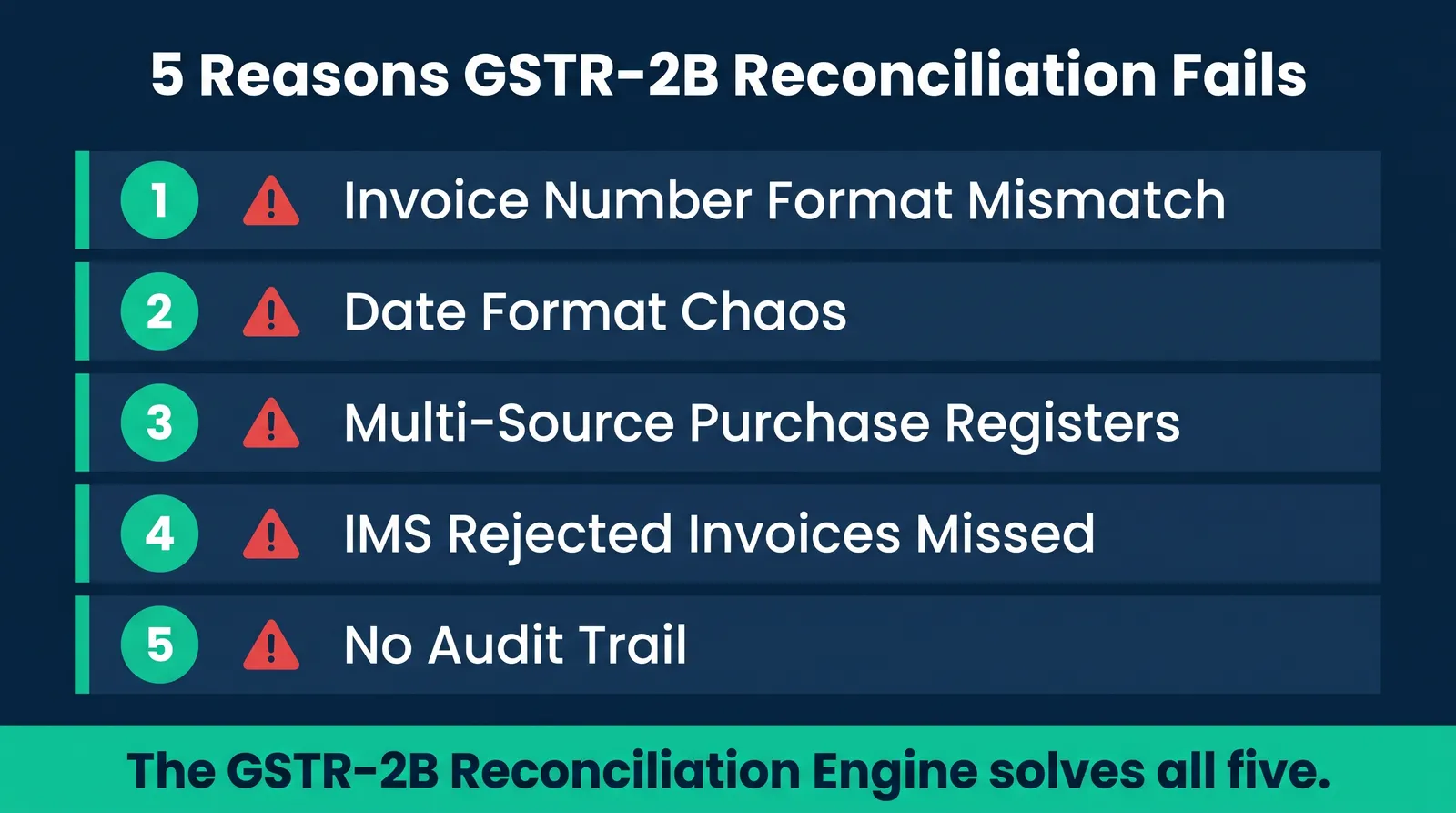
GSTR-2B reconciliation is not complex in theory. You compare what the GST portal says your suppliers filed against what you recorded in your purchase register, and you reconcile the differences. In practice, five structural problems make this a multi-day exercise every month.
Invoice Number Format Mismatches
Your supplier files INV/2025/001 on the portal. Your Tally books it as INV25-001. VLOOKUP sees two different strings and marks the record unmatched. You spend hours manually comparing hundreds of these pairs.
Date Format Chaos
Your purchase register exports 31-Mar-2026. The portal shows 31/03/2026. Excel date matching fails silently — and you often do not discover the error until your CA flags it during review.
Multi-Source Purchase Registers
You use Tally for domestic purchases and Zoho Books for imports. You have to manually union two registers before you can even begin reconciliation. That step should not exist.
IMS Rejected Invoices Missed
Since October 2024, invoices you rejected on the Invoice Management System portal appear in a separate tab in GSTR-2B. Most teams either miss this tab or handle it outside the main reconciliation — a direct compliance gap.
No Audit Trail
A VLOOKUP output tells you what did not match. It does not tell you why, it does not assign an action per invoice, and it does not summarise ITC at risk by category. You rebuild the analysis from scratch every month.
If your current process looks like this, you are not behind — you are using a tool (VLOOKUP) that was never designed for this job. The GSTR-2B Reconciliation Engine from FinDataPro was. If you are new to Power Query, start with our guide on what Power Query is and how it works for finance professionals.
What Is a GSTR-2B Reconciliation Engine?
A GSTR-2B Reconciliation Engine is a structured Excel workbook powered by Power Query M code. It automatically imports your GSTR-2B portal download and one or more purchase register exports, runs a three-pass matching algorithm, and outputs a categorised reconciliation table with an action flag on every invoice row.
The FinDataPro GSTR-2B Reconciliation Engine (PREMIUM #1) handles:
- Multi-source purchase registers — Tally, Zoho Books, SAP, QuickBooks, or any ERP that exports to Excel or CSV
- Invoice number normalisation — Trims spaces, standardises case, removes leading and trailing punctuation to catch near-matches VLOOKUP would miss
- Locale-aware date parsing — Handles DD/MM/YYYY (en-GB), MM/DD/YYYY (en-US), and Indian ERP formats without manual conversion
- IMS rejected invoices — B2B-Rejected and B2B-CDNR-Rejected tabs (January 2025 onwards) processed automatically
- Configurable value and date tolerances — Define acceptable rounding differences so minor ERP rounding does not inflate your mismatch count
- Seven output statuses — Each with pre-populated action guidance per invoice
- One-click refresh — Press Ctrl+Alt+F5; the engine does the rest
The workbook has seven sheets: Parameters, GSTR2B_Setup, PurchaseReg_Setup, Tolerance_Setup, Reconciliation (main output), Summary, and Instructions. Configuration is done once. Ongoing use is a single refresh.
Watch the Full Video Tutorial
Before diving into the written guide, watch the complete setup and demo. It walks through every configuration screen, shows live output in the reconciliation sheet, and covers all seven status categories with real sample data — Tally and Zoho Books purchase registers matched against an actual GSTR-2B download.
Prefer to read? Continue below for the complete written guide with screenshots, configuration tables, and the full error-reference section. The video and the article cover the same ground — use whichever fits your workflow.
How the 3-Pass Matching Algorithm Works
Most Excel-based reconciliation tools run a single lookup: does this GSTIN and invoice number pair exist in both tables? That approach fails the moment a supplier files under a different state code, or your books have a minor format difference in the invoice number.
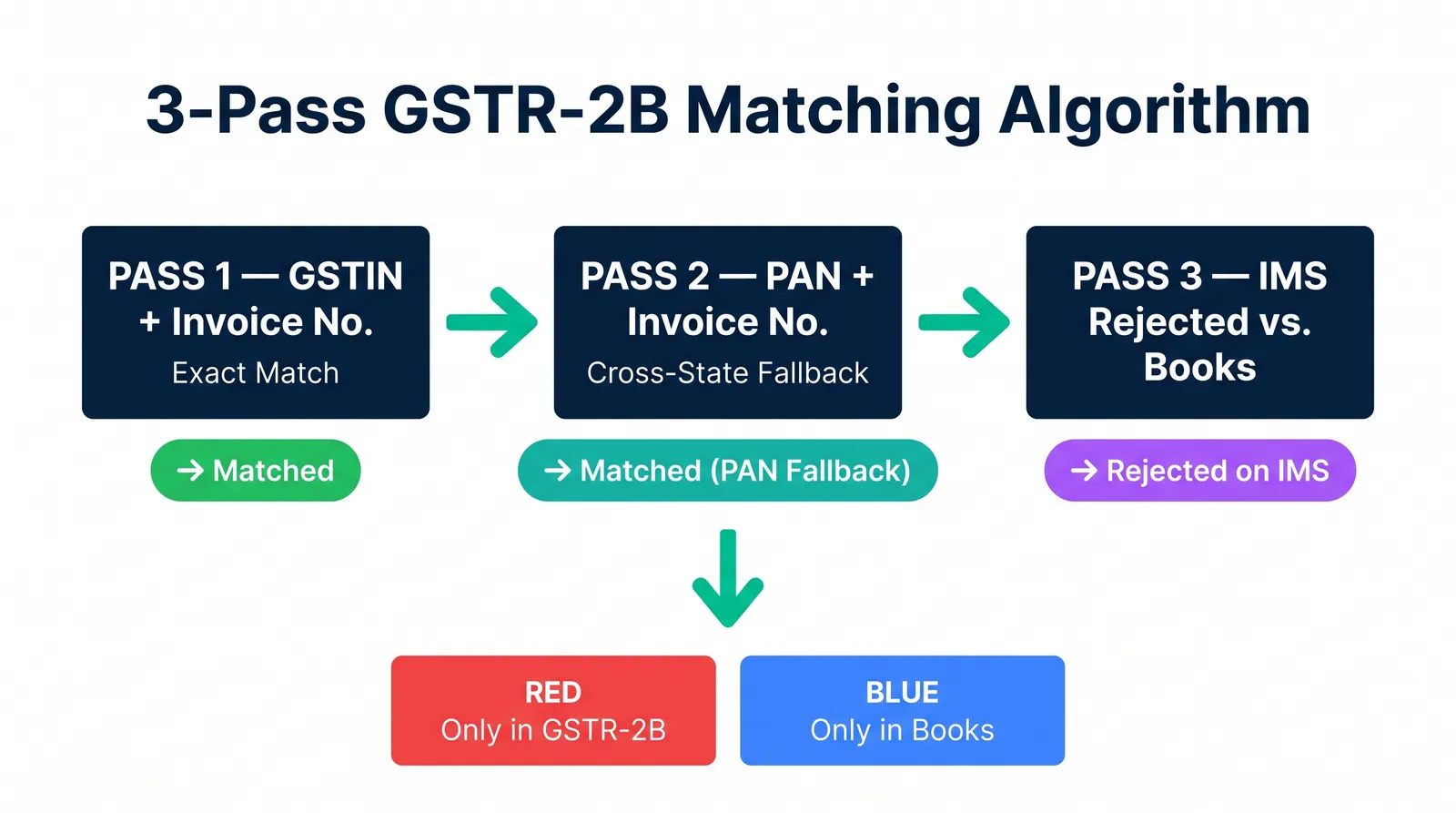
The FinDataPro engine runs three sequential passes, each covering a different matching scenario.
Pass 1 — GSTIN + Invoice Number (Exact Match)
The engine normalises both GSTINs (uppercase, trimmed) and invoice numbers (uppercase, trimmed, leading punctuation removed), then performs an exact join. Records matched here are classified as Matched if amounts are within tolerance.
Pass 2 — PAN + Invoice Number (Cross-State Fallback)
Records not matched in Pass 1 pass to the second join. The engine extracts characters 3–12 from each GSTIN (the embedded PAN) and joins on PAN + Invoice Number. This catches the common case where a supplier's state code differs between the portal filing and your ERP. Records here are Matched (PAN Fallback) — flagged for GSTIN verification before ITC claim.
Pass 3 — IMS Rejected vs. Books
Records from the portal's IMS Rejected tab are matched against your purchase register. If the rejected invoice exists in your books, it becomes Rejected on IMS (In Books) — a conflict requiring resolution. If it does not, it becomes Rejected on IMS (Not in Books) — typically no action needed.
Whatever remains unmatched after all three passes becomes either Only in GSTR-2B or Only in Books, each with distinct ITC implications.
This mirrors what the 7 ways Power Query transforms accounting workflows article calls multi-pass ETL — a technique that applies across bank reconciliations, AR aging, and other finance automation use cases.
Prerequisites and Folder Setup
Before configuring the tool, confirm you have:
- Microsoft Excel 2016 or later (Microsoft 365 recommended), with Power Query enabled
- A GSTR-2B Excel file downloaded from gst.gov.in → Returns → GSTR-2B → Download Excel — do not open or modify it after downloading
- A purchase register export from Tally, Zoho Books, SAP, or your ERP as Excel or CSV
- A dedicated folder on a local drive — not OneDrive or SharePoint, which interfere with Power Query folder path resolution
Critical: Folder Structure
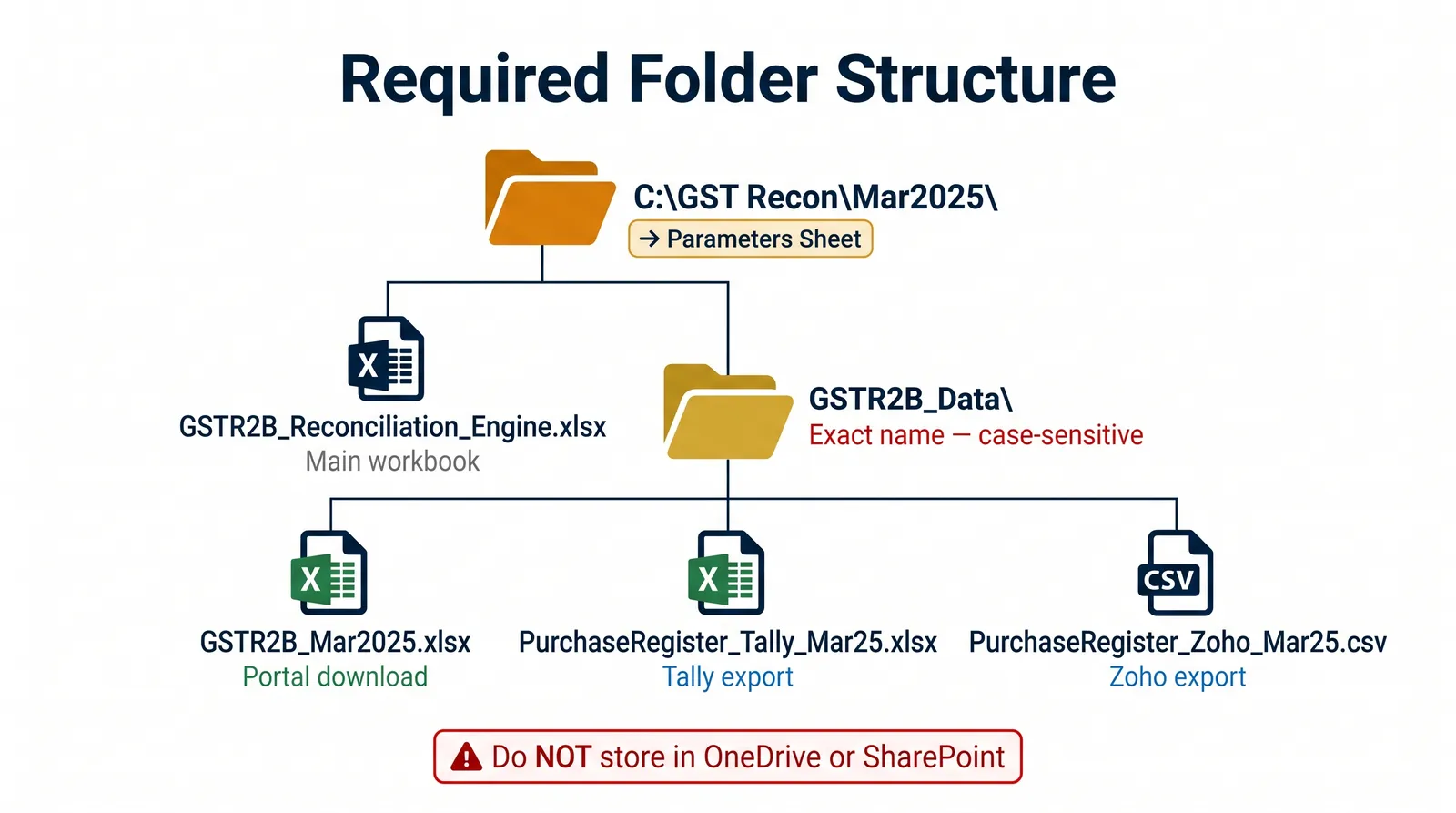
The subfolder must be named exactly GSTR2B_Data — Power Query is case-sensitive. All data files go inside this subfolder, not in the root.
C:\GST Recon\Mar2025\                    ← Base Folder (Parameters)
    GSTR2B_Reconciliation_Engine.xlsx    ← The workbook
    GSTR2B_Data\                         ← Subfolder (case-sensitive)
        GSTR2B_Mar2025.xlsx              ← Portal download
        PurchaseRegister_Tally_Mar25.xlsx ← Tally export
        PurchaseRegister_Zoho_Mar25.csv   ← Zoho export
Avoid cloud-synced folders
OneDrive and SharePoint sync locks files mid-refresh and breaks Power Query folder path resolution. Use a plain local drive folder.
Step-by-Step Configuration Guide
Step 1 — Set the Base Folder Path (Parameters Sheet)
Open the workbook. Go to the Parameters sheet. Verify the value in the Base Folder Path cell ends with a backslash (\). Example: C:\GST Recon\Mar2025\
The number one setup mistake
The trailing backslash. Without it, Power Query cannot locate the GSTR2B_Data subfolder and returns no data.
Step 2 — Configure GSTR-2B Setup (GSTR2B_Setup Sheet)
This sheet has four columns:
| Column | Field | What to Enter |
|---|---|---|
| A | File_Keyword | A unique word in your GSTR-2B file name, e.g. GSTR2B or Mar2025 |
| B | Return_Period | Reference label only, e.g. Mar-25. Does not affect processing. |
| C | Include_Amended | Y or N. Y includes B2BA and B2B-CDNRA tabs for amended invoices. |
| D | Include_IMS_Rejected | Y or N. Y processes the IMS Rejected tab (Jan 2025 files onwards). |
The File_Keyword approach means you never type a full file path. The engine scans the GSTR2B_Data folder and picks the first file whose name contains your keyword. Make the keyword specific enough that only one file matches.
Step 3 — Configure Purchase Register Setup (PurchaseReg_Setup Sheet)
Add one row per ERP source. If you use both Tally and Zoho Books, add two rows. This is the most critical configuration step — one misspelled column header nulls that field across every record from that source.
| Field | Tally Example | Zoho Example |
|---|---|---|
| Source_Label | Tally | Zoho Books |
| File_Keyword | Tally | Zoho |
| Date_Locale | en-GB | en-GB |
| GSTIN_Column | GSTIN/UIN | Vendor GSTIN |
| Invoice_No_Column | Voucher No. | Invoice Number |
| Invoice_Date_Column | Date | Invoice Date |
| Invoice_Value_Column | Gross Total | Total Amount |
| Taxable_Value_Column | Taxable Value | Taxable Amount |
| IGST_Column | IGST | IGST Amount |
| CGST_Column | CGST | CGST Amount |
| SGST_Column | SGST | SGST Amount |
Copy column names from the export — do not type from memory
The full stop in Tally's Voucher No. is part of the header; omitting it causes a null GSTIN column across all Tally rows.
Date_Locale tells the engine how to parse date strings from your ERP. Getting this wrong is the single most common cause of silent date misreads — a May 1st invoice parsed as January 5th — which inflates your date mismatch count without any visible error.
| Format in Your ERP | Date_Locale to Enter |
|---|---|
| 31/03/2026 (DD/MM/YYYY) | en-GB |
| 03/31/2025 (MM/DD/YYYY) | en-US |
| 31-Mar-25 | en-IN |
For more on multi-source transformation, see how to consolidate bank statements in Excel automatically — the same folder-scan technique applies.
Step 4 — Set Tolerance Limits (Tolerance_Setup Sheet)
| Setting | Default | What It Controls |
|---|---|---|
| Tax_Head_Abs_Tolerance | ₹1 | Max rupee difference on IGST, CGST, or SGST for a record to stay Matched |
| Taxable_Value_Pct_Tolerance | 0.1% | Max % difference in taxable value |
| Taxable_Value_Abs_Tolerance | ₹10 | Max absolute rupee difference in taxable value |
| Date_Tolerance_Days | 7 | Max days between portal date and books date |
The engine applies either the percentage or absolute tolerance — whichever is more lenient. The defaults cover standard rounding at two decimal places. Adjust upward only if your ERP genuinely rounds differently.
Step 5 — Run the Reconciliation
- Save the workbook
- Press Ctrl+Alt+F5 to refresh all queries simultaneously (or Data → Refresh All)
- Wait for all queries to complete (first refresh: 30–90 seconds; subsequent refreshes faster)
- Review results in the Reconciliation sheet and the Summary sheet
Do not click anything during refresh
Power Query runs sequentially and interruption can corrupt the query cache.
Watch: See the Refresh Run Live
The full tutorial shows the three-pass match executing against sample Tally and Zoho data — watch the Reconciliation and Summary sheets populate in real time.
Get the GSTR-2B Reconciliation Engine — FinDataPro PREMIUM #1
Production-ready workbook with sample Tally and Zoho datasets and a full instruction sheet. Configure once, refresh forever.
Buy GSTR-2B Reconciliation Engine — Excel + Power QueryUnderstanding the 7 Reconciliation Statuses
Every row in the Reconciliation output sheet carries one of seven statuses in the Recon_Status column. Each status has a corresponding pre-populated value in the Action_Required column.
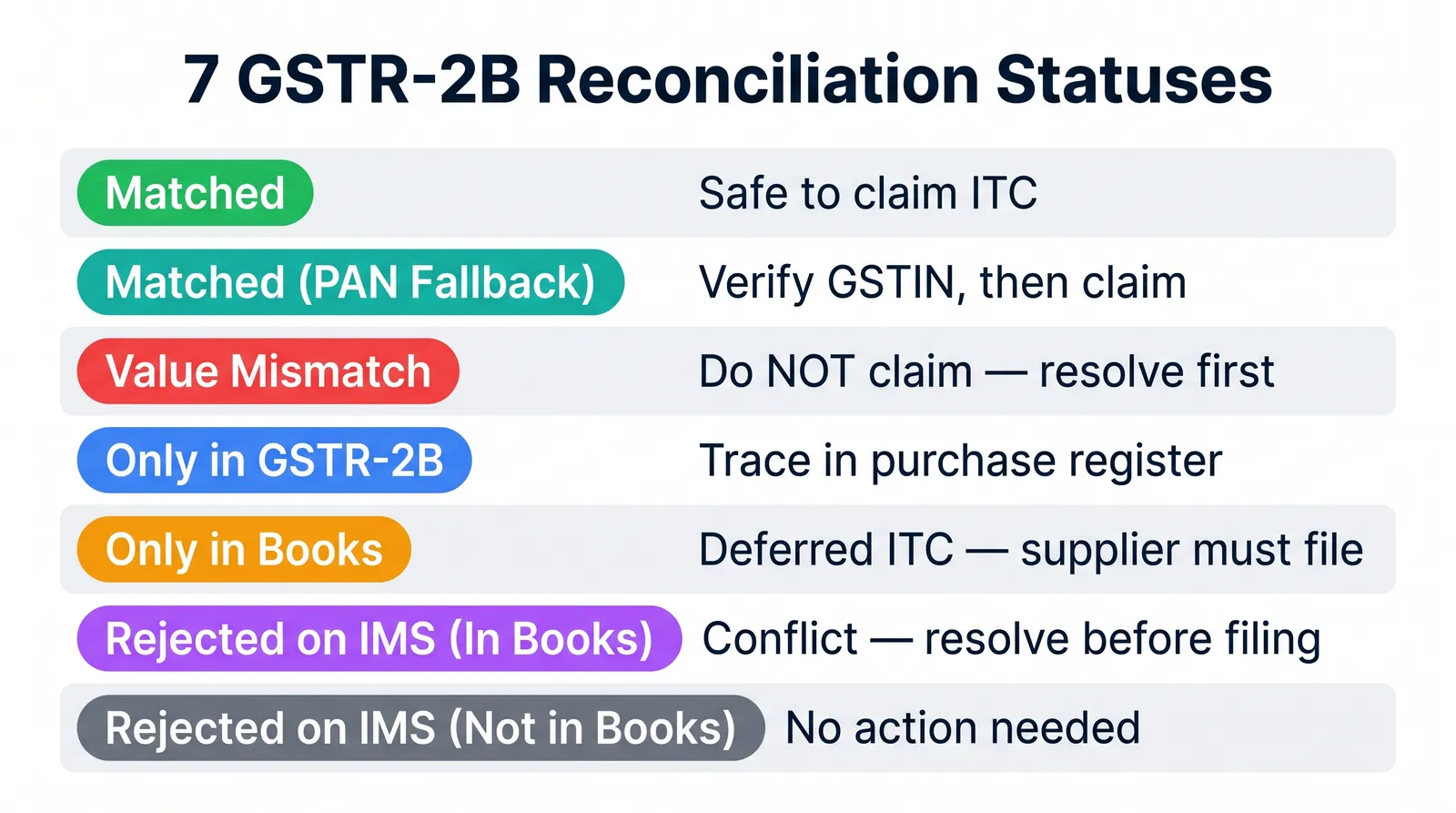
Invoice found in both the GST portal and your purchase register, with amounts within your configured tolerances. Safe to claim ITC as per the GSTR-2B amount. These rows require no action unless a flag column is set. Watch for two optional flags on Matched rows: Date_Flag (the invoice date in your books differs from the portal date by more than your Date_Tolerance_Days — usually because your team booked the invoice in a different period), and Rounding_Flag (tax amounts match within tolerance but a small rounding difference exists — disclosure only, no ITC impact).
Matched on PAN + Invoice Number, but the GSTIN state codes differ between portal and books. The engine extracted the embedded PAN (characters 3–12 of the GSTIN) and found a match. Verify with the supplier that they filed under the correct GSTIN before claiming ITC, and document this verification in your working paper.
Invoice found in both portal and books, but the taxable value or tax amounts differ beyond your tolerance. Do not claim ITC until resolved. Contact the supplier to determine which figure is correct, obtain a corrected invoice if needed, adjust your books accordingly, then rerun the reconciliation to confirm the record moves to Matched.
The portal has this invoice; your purchase register does not. Three likely causes: the invoice is not yet booked in your ERP; it was booked under a different invoice number; or the supplier filed under the wrong GSTIN. ITC is available on the portal but do not claim until the invoice is traced in your books.
Your purchase register has this invoice; the supplier has not filed on the portal yet. ITC is not available until the supplier files their GSTR-1. The total tax amount across all Only in Books rows is your deferred ITC position — track this separately in your working paper so it is not lost between periods.
You rejected this invoice on the IMS portal, but it is recorded in your purchase register as a received and booked purchase. You have a conflict. Before filing, you must either un-reject on the IMS portal before the filing deadline to retain ITC eligibility, or reverse the booking in your accounts if the rejection was correct. Do not leave any rows in this category unresolved before filing GSTR-3B.
You rejected this invoice on IMS, and it is not in your purchase register. Everything is consistent. No action required unless the rejection was made in error — review to confirm the rejection was intentional.
Tip: scan your Only in GSTR-2B and Only in Books rows together. Some pairs are the same invoice with a number format difference — see how we handle this kind of data quality issue when we convert a nested AR aging report with Power Query.
ITC Position Summary Dashboard
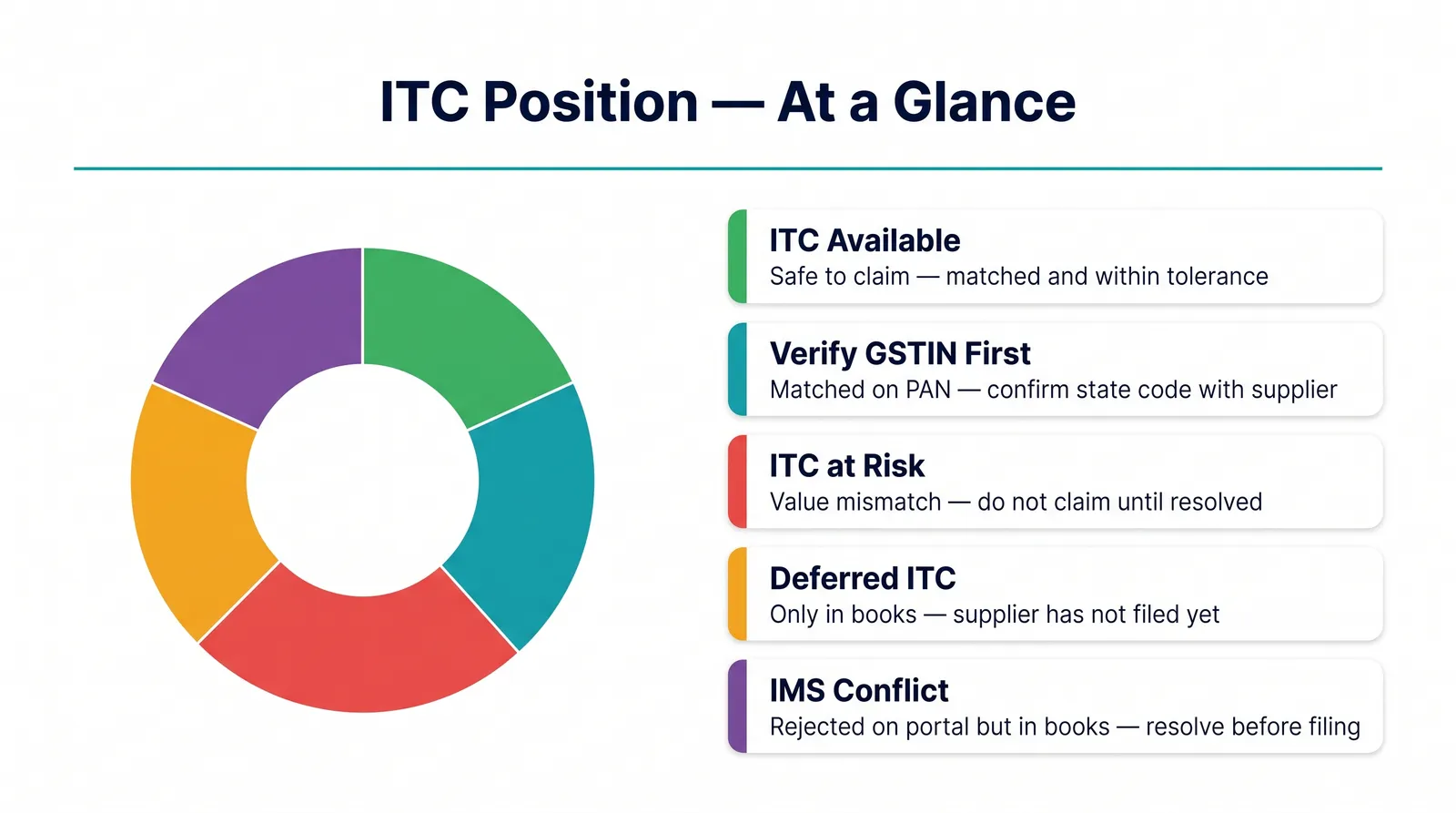
The Summary sheet groups the Reconciliation output by Recon_Status, showing invoice count and total tax amount per category. This is your monthly ITC position at a glance.
Never hardcode a total row inside a Power Query output table
The Summary sheet uses a native Excel Table with a built-in Total Row. A hardcoded row breaks sorting, conflicts with filters, doubles the total when Excel's own Total Row is enabled, and gets overwritten on the next refresh.
Edge Cases Handled
Multi-GSTIN Companies
If your company has multiple GST registrations, run the tool separately for each GSTIN. Each registration has its own GSTR-2B download and its own GSTR2B_Data folder. One workbook per GSTIN keeps reconciliation outputs separate and makes entity-level ITC tracking straightforward.
Large Purchase Registers (50,000+ Rows)
The first refresh on a large register can take four to five minutes. If performance is a concern, split your register by supplier type — domestic in one file, imports in another — and configure two rows in the PurchaseReg_Setup tab. Power Query loads both in the same refresh cycle.
Supplier Files in Next Period
A supplier files an April invoice for a March purchase. In your March reconciliation it appears as Only in Books. In April, it appears as Only in GSTR-2B. This is expected behaviour — document it in your working paper. Under Rule 36(4) of the CGST Rules, ITC can be availed in the period the supplier files, subject to limits.
Credit Notes (B2B-CDNR)
CDNR tab invoices are processed automatically — they carry negative taxable values and tax amounts. Match these against your debit note or purchase return entries. The same three-pass logic applies.
Common Errors and How to Fix Them
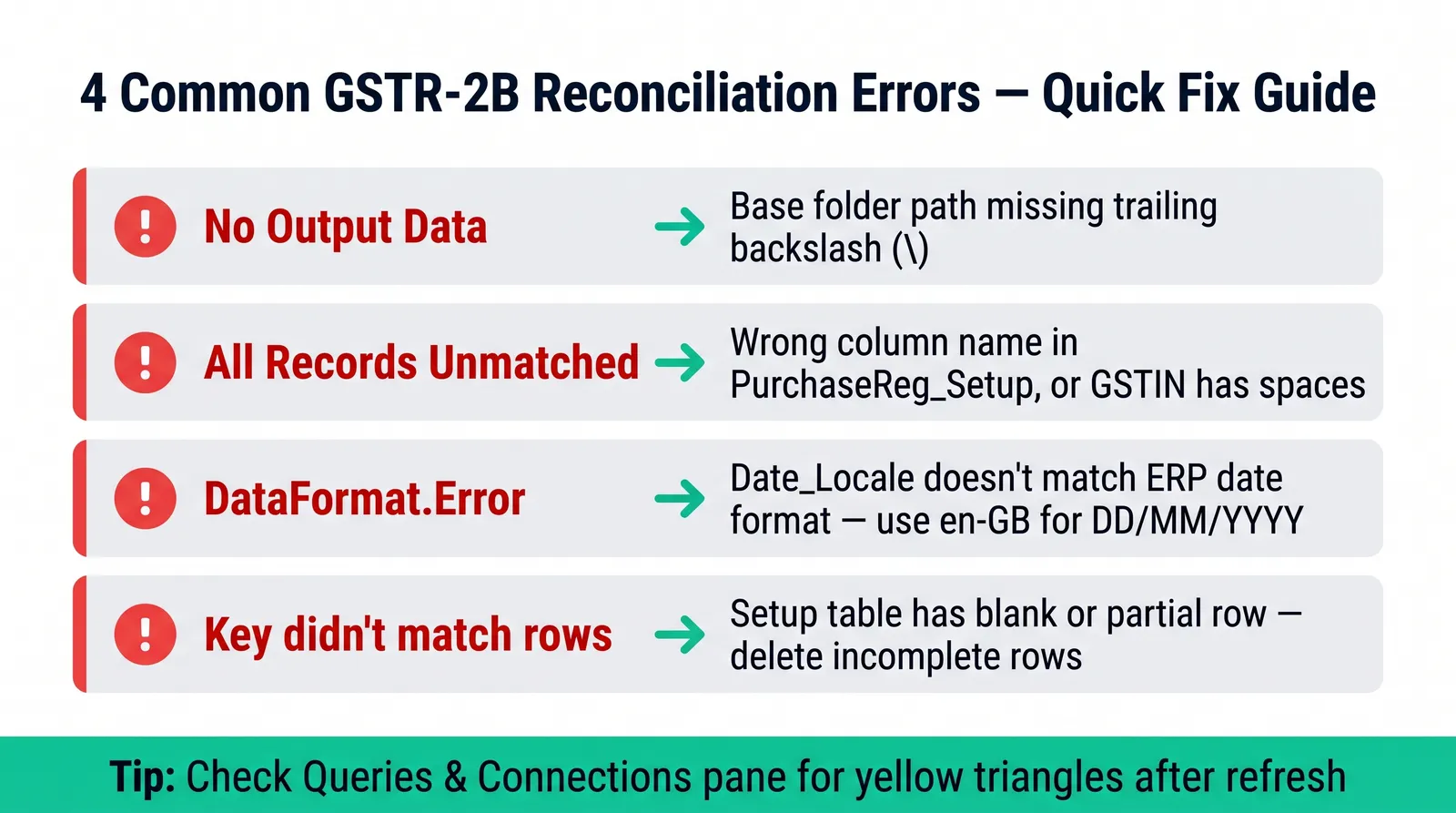
No data in Reconciliation output
Cause: Base Folder Path does not end with a backslash; GSTR2B_Data subfolder missing or mis-spelled; File_Keyword matches no file; or the GSTR-2B file is in the root folder instead of inside GSTR2B_Data.
Fix: Verify the trailing backslash, the exact subfolder name and case, and that every data file lives inside GSTR2B_Data.
All records show Only in GSTR-2B or Only in Books
Cause: GSTIN values in your purchase register do not match portal GSTINs — leading/trailing spaces, mixed case, or truncated GSTINs in the ERP export.
Fix: Check GSTIN_Column points to the correct column, and look for spaces in the formula bar. Truncated GSTINs must be corrected in the ERP export settings.
DataFormat.Error on date column
Cause: Date_Locale does not match the actual date format in your ERP export. A wrong locale causes silent misreads — May 1st parsed as January 5th.
Fix: Find a January 5th entry: if it shows 05/01/2026 use en-GB (DD/MM/YYYY); if it shows 01/05/2026 use en-US (MM/DD/YYYY).
Expression.Error — "The key didn't match any rows"
Cause: A setup table (GSTR2B_Setup or PurchaseReg_Setup) is empty, or has a blank partial row that Excel sometimes auto-adds.
Fix: Delete any rows that are not fully filled. Optional columns like Cess_Column can be blank — required fields like File_Keyword and GSTIN_Column must have a value.
GSTR-2B Reconciliation Checklist for CAs
Use this checklist every month before filing GSTR-3B.
Pre-reconciliation
- GSTR-2B downloaded from GST portal for the relevant return period
- Purchase register exported from each ERP source and saved to GSTR2B_Data folder
- File keywords verified to match actual file names in folder
- Parameters sheet: base folder path ends with backslash
Post-refresh — output review
- No yellow warning triangles in Queries & Connections pane (Data → Queries & Connections)
- Matched rows reviewed — Date_Flag and Rounding_Flag rows noted
- Matched (PAN Fallback) rows verified with supplier re GSTIN
- Value Mismatch rows escalated to supplier — ITC blocked until resolved
- Only in GSTR-2B rows traced in ERP or queried with supplier
- Only in Books total documented as deferred ITC in working paper
- All Rejected on IMS (In Books) rows resolved — un-reject on portal or reverse in books
- Rejected on IMS (Not in Books) rows confirmed as intentional
Filing readiness
- Summary sheet ITC totals match GSTR-2B ITC dashboard
- Working paper saved with output file (print Reconciliation and Summary sheets to PDF)
- Zero rows in Rejected on IMS (In Books) category before filing
For other finance process automation built on the same Power Query foundation, explore our full library of Power Query tutorials for finance professionals.
Frequently Asked Questions
What is GSTR-2B reconciliation and why is it mandatory?
GSTR-2B reconciliation is the process of matching invoices reported by your suppliers on the GST portal against the invoices recorded in your purchase register. It is a prerequisite to filing GSTR-3B under Rule 36(4) of the CGST Rules, which caps ITC claims at the amount appearing in GSTR-2B. Failing to reconcile before filing exposes you to ITC reversals and GST notices.
How is GSTR-2B different from GSTR-2A?
GSTR-2A is a real-time, dynamic view of invoices filed by your suppliers. GSTR-2B is a static, auto-drafted ITC statement generated on the 14th of each month. GSTR-2B is the basis for ITC claims; GSTR-2A is for reference only. The GSTR-2B Reconciliation Engine uses GSTR-2B as the authoritative portal source.
Can this tool handle multiple ERP sources in a single reconciliation?
Yes. Configure one row per ERP source in the PurchaseReg_Setup sheet. The engine scans the GSTR2B_Data folder for each source file by keyword, imports all sources in a single refresh, and merges them before running the three-pass match. You can have Tally, Zoho Books, SAP, and any other CSV/Excel export running together in one reconciliation.
What are IMS rejected invoices and how does the tool handle them?
The Invoice Management System (IMS) allows recipients to accept, reject, or defer invoices filed by suppliers. Since January 2025, rejected invoices appear in a dedicated tab in the GSTR-2B download. The engine processes this tab when Include_IMS_Rejected is set to Y and classifies each rejected invoice as either Rejected on IMS (In Books), which requires resolution, or Rejected on IMS (Not in Books), which is clean.
What does Matched (PAN Fallback) mean — can I claim ITC?
A PAN Fallback match means the invoice matched on PAN number and invoice number, but the GSTIN state code differs between the portal and your books. ITC is typically available, but you must verify with the supplier that they filed under the correct GSTIN for their registration in your state. Document this verification before claiming.
How do I reconcile if my supplier keeps changing invoice number formats?
Invoice number normalisation handles most format differences automatically — it converts to uppercase, trims whitespace, and removes leading and trailing punctuation. However, it cannot match INV-001 with INV00001. When you find these pairs in Only in GSTR-2B and Only in Books, flag them for your accounts team. The long-term fix is standardising invoice number format at the ERP entry point.
How long does a reconciliation take after the tool is configured?
After the one-time configuration, a refresh typically takes 30 to 60 seconds for a register with fewer than 10,000 rows. For registers above 50,000 rows, allow four to five minutes. The configuration itself — setting up the three setup sheets for the first time — takes approximately 15 to 30 minutes, depending on how many ERP sources you are mapping.
Does the tool work without an internet connection?
Yes. The engine reads files from your local folder and performs all processing inside Excel. No internet connection, API keys, or external services are required. The only online step is downloading GSTR-2B from the GST portal before you begin.
Is this tool compliant with GSTN data handling requirements?
The tool processes GSTR-2B data entirely on your local machine within Microsoft Excel. No data is uploaded to external servers. However, it is a computational tool — it does not constitute professional tax advice. Reconciliation output should be reviewed by a qualified tax professional before filing GSTR-3B or claiming ITC.
Can I use this tool for GSTR-2B reconciliation with SAP?
Yes. Export your purchase register from SAP as Excel or CSV with the required columns (GSTIN, invoice number, invoice date, taxable value, IGST, CGST, SGST). Enter the exact SAP column header names in the PurchaseReg_Setup sheet. The same process works for Dynamics 365, NetSuite, QuickBooks, Sage, and any ERP that exports structured data.
GSTR-2B Reconciliation in 60 Seconds, Not 3 Days
GSTR-2B reconciliation is one of the most time-intensive recurring tasks in Indian GST compliance — and one of the most automatable. The five problems we covered (invoice number mismatches, date format chaos, multi-source registers, IMS rejected invoices, and no audit trail) are structural failures of the VLOOKUP-based reconciliation approach, not inherent complexity in the reconciliation itself.
The GSTR-2B Reconciliation Engine replaces that approach with a structured, three-pass Power Query engine that handles format differences, multi-ERP sources, and Invoice Management System (IMS) complexity automatically. What used to take two or three days now takes one refresh.
Your action plan:
- 1Download GSTR-2B from the GST portal for your return period and save it to your GSTR2B_Data folder
- 2Export your purchase register from Tally, Zoho, SAP, or your ERP — no reformatting needed
- 3Configure the three setup sheets once — GSTR2B_Setup, PurchaseReg_Setup, Tolerance_Setup
- 4Press Ctrl+Alt+F5 and review the output
- 5Use the checklist above to clear every status category before filing GSTR-3B
The configuration takes 30 minutes the first time. Every month after that, it is a folder swap and a refresh.
Download the GSTR-2B Reconciliation Engine
Production-ready workbook with sample data for Tally and Zoho Books, complete instruction sheet, and ongoing support. Built by a 19-year GCC finance executive and ACA. FinDataPro PREMIUM #1.
Or browse our full library of free Excel and Power Query templates if you want to explore before purchasing.
Also relevant: XLOOKUP vs VLOOKUP for accountants — why the formula-based approach was never built for reconciliation at this scale.
Prashant Panchal is a Chartered Accountant (ACA) and Financial Modelling & Valuation Analyst (FMVA®) with 19 years of experience in finance, FP&A, and financial modelling across the GCC region. He is the founder of FinDataPro.
Discussion
Leave a Comment
Comments are moderated and appear once approved.