
LET and LAMBDA in Excel: Writing Auditable Custom Functions Without VBA
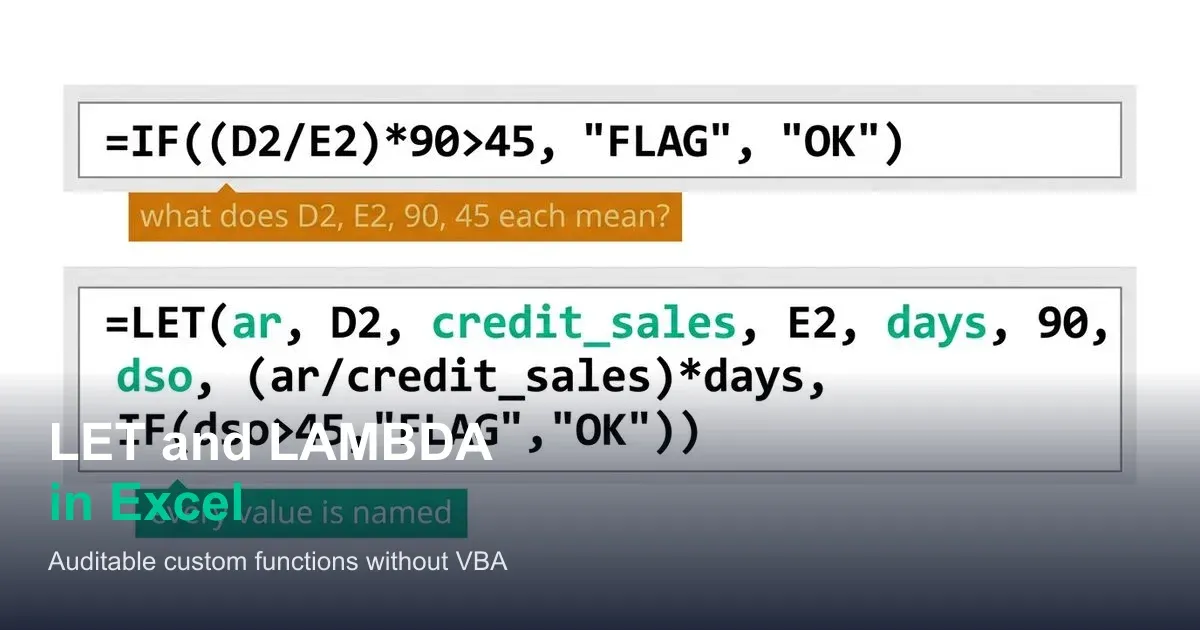
Use LET to name intermediate steps in a formula and LAMBDA to build reusable custom functions in Excel, verified against a real DSO calculation.

ACA | FMVA® | 19 Years in Finance
A Days Sales Outstanding calculation is one division problem and a multiplication: accounts receivable divided by credit sales, multiplied by the number of days in the period. Simple enough to write once. The trouble starts when it needs to appear in twelve different cells across a model, one per business unit, one per region, one in a summary tab, and each copy is typed out fresh, with its own chance of referencing the wrong cell, using a different day-count assumption, or just being slightly harder to read than it needs to be. LET names the pieces of a formula so a reviewer can actually follow the logic. LAMBDA turns the whole calculation into a genuine reusable function, callable by name, without opening the VBA editor once.
This guide refactors a real DSO calculation with LET, then builds it into a named LAMBDA function used consistently across a full model.
The Problem With Long, Repeated Formulas
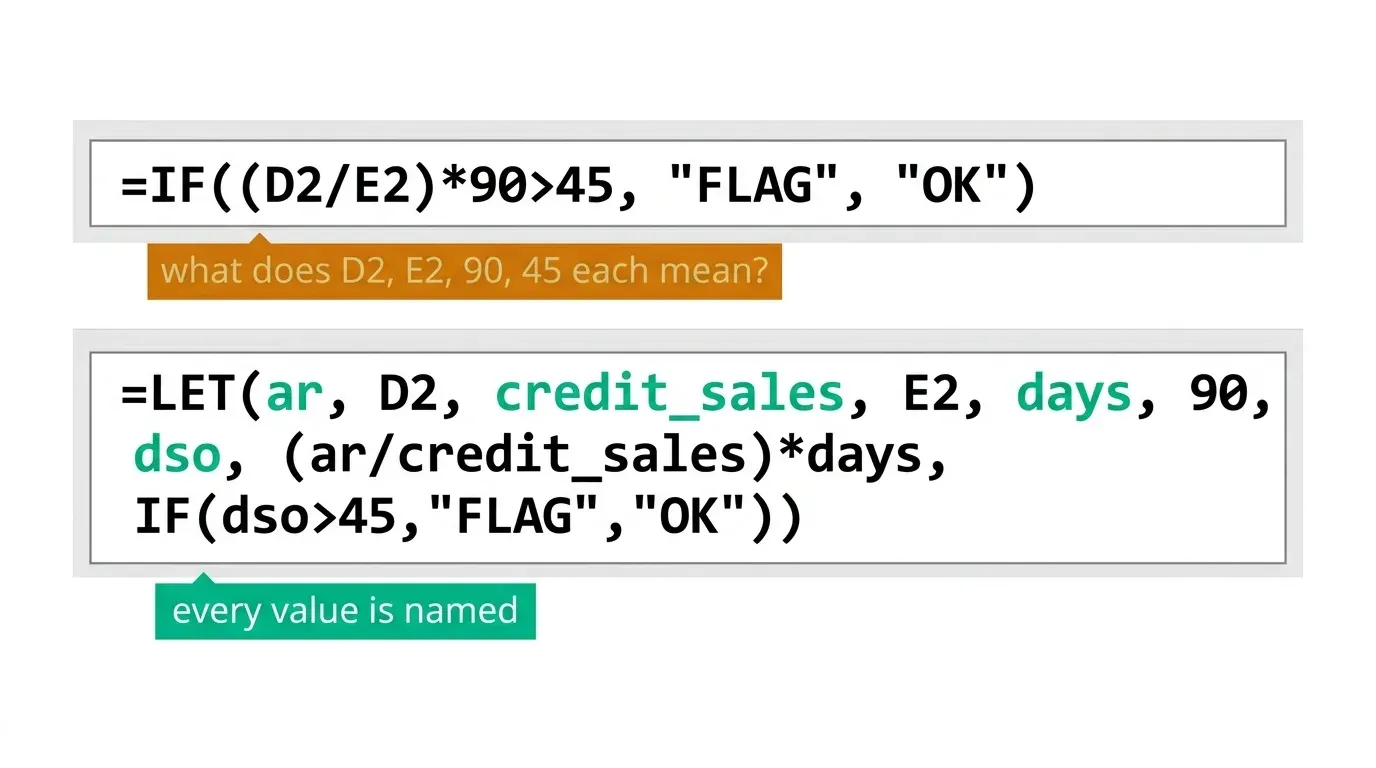
A single-cell formula that calculates a ratio, checks it against a threshold, and formats a result often ends up looking like this:
=IF((D2/E2)*90>45, "FLAG — over 45 days", "OK")
This works, but it hides its own logic. Someone reviewing this cell has to mentally parse D2/E2 as a ratio, remember that *90 is a day-count assumption, and infer that 45 is a threshold, none of which is labelled anywhere in the formula itself. Copy this formula to twelve more cells for twelve business units, and any inconsistency between copies (a 91 where every other cell has 90, a stray absolute reference that didn't update) is invisible until the numbers stop reconciling.
What LET Actually Does
Per Microsoft's official LET function reference:
=LET(name1, value1, name2, value2, ..., calculation)
LET lets you assign a name to an intermediate value inside a formula, then reference that name later in the same formula, including in the final calculation, instead of repeating the underlying expression or leaving it unlabelled.
The Scenario: A DSO Calculation Repeated Across a Model
Consider a fictional multi-unit reporting model for Meridian Group, where each business unit's DSO needs calculating and flagging if it exceeds a 45-day threshold:
| Business Unit | Accounts Receivable | Credit Sales (Period) | Days in Period |
|---|---|---|---|
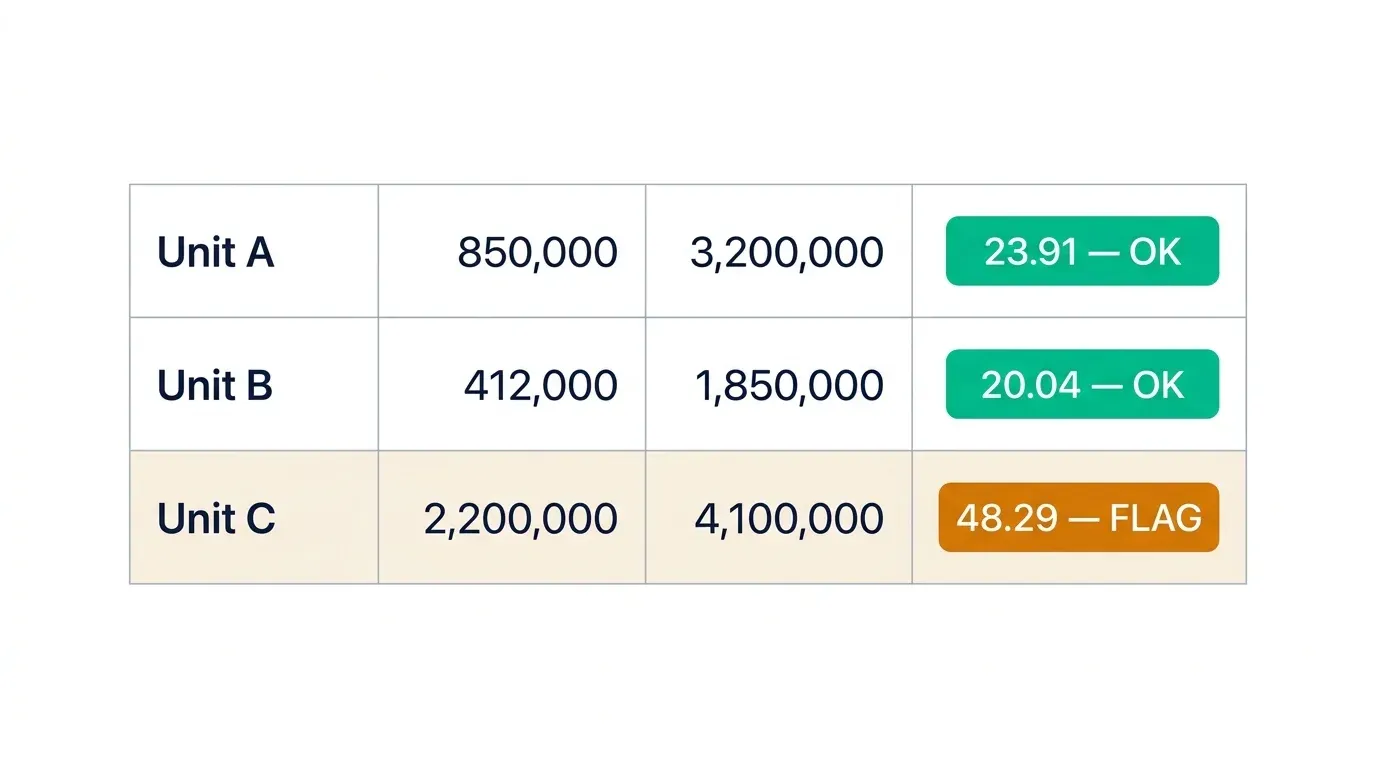
| Unit A | 850,000 | 3,200,000 | 90 |
| Unit B | 412,000 | 1,850,000 | 90 |
| Unit C | 2,200,000 | 4,100,000 | 90 |
Step 1: Refactoring the Formula With LET
The unlabelled version from above, rewritten with LET to name each step:
=LET(
  ar, [@AccountsReceivable],
  credit_sales, [@CreditSales],
  days, [@DaysInPeriod],
  dso, (ar/credit_sales)*days,
  IF(dso>45, "FLAG — over 45 days", "OK")
)
Every value now has a name that describes what it is. A reviewer opening this formula sees ar, credit_sales, days, and dso spelled out explicitly, rather than having to reverse-engineer D2, E2, and a bare 90 back into their meaning. For Unit A's figures, this returns 23.91 for the underlying DSO calculation and "OK" for the flag; for Unit C's figures, it returns 48.29 and "FLAG — over 45 days".
Step 2: From LET to a Named LAMBDA Function
LET makes one formula readable. LAMBDA makes the calculation itself reusable, callable by a name of your choosing, anywhere in the workbook. Per Microsoft's official LAMBDA function reference:
=LAMBDA(ar, credit_sales, days, threshold,
  LET(
    dso, (ar/credit_sales)*days,
    IF(dso>threshold, "FLAG — over " & threshold & " days", "OK")
  )
)
This defines a function that takes four inputs, accounts receivable, credit sales, days in period, and the flag threshold, and returns the same flagged result, but now it's a genuine function rather than a formula that has to be copied and manually checked for consistency.
Step 3: Registering the Function in Name Manager
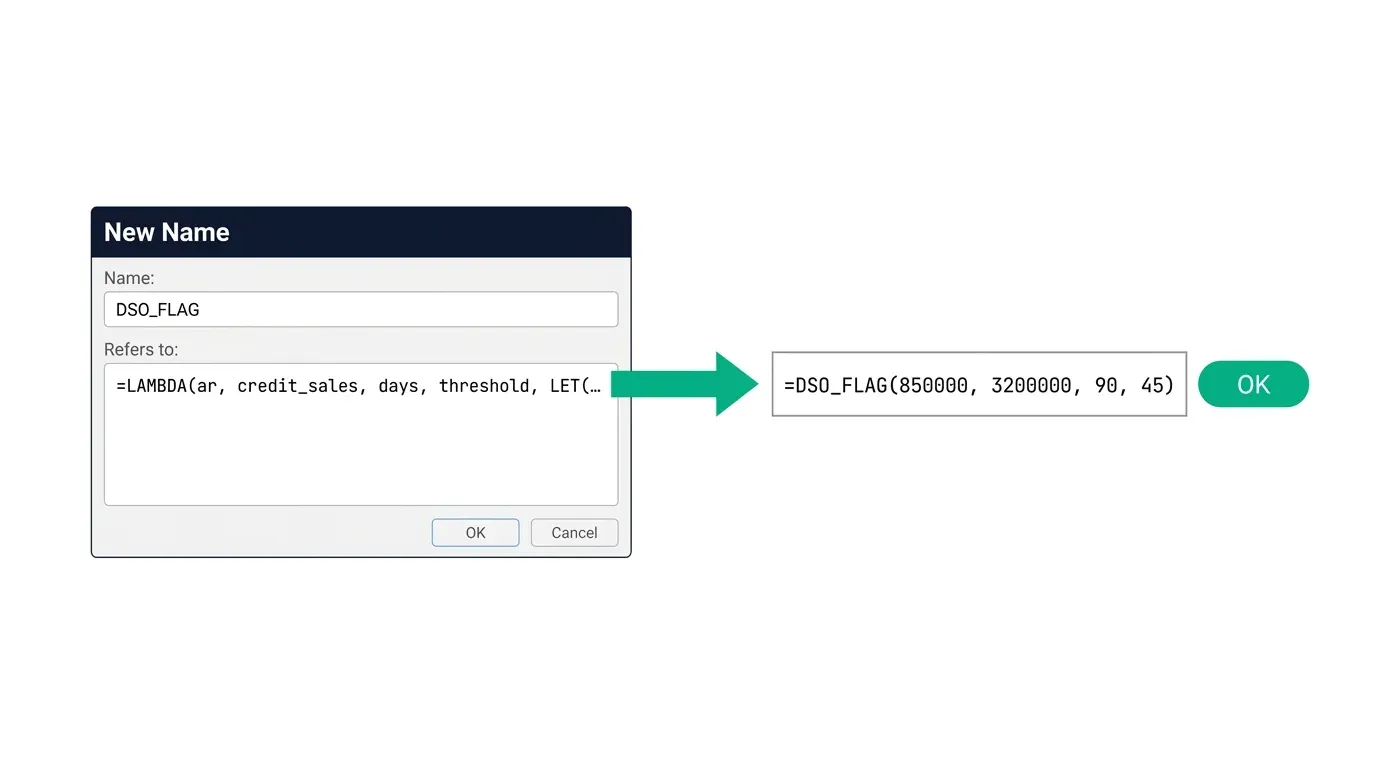
A LAMBDA formula typed directly into a cell calculates once, in that cell, it isn't yet reusable elsewhere. To make it a genuine named function, register it via Formulas → Name Manager → New, entering a name (for example, DSO_FLAG) and pasting the LAMBDA formula into the "Refers to" field instead of a cell reference. Once registered, =DSO_FLAG(...) becomes usable in any cell in the workbook exactly like a built-in Excel function.
Step 4: Using the New Function Across the Workbook
With DSO_FLAG registered, every business unit's calculation becomes a single, consistent function call:
=DSO_FLAG([@AccountsReceivable], [@CreditSales], [@DaysInPeriod], 45)
For the three units in the scenario above, this returns "OK" for Unit A (23.91 days), "OK" for Unit B (20.04 days), and "FLAG — over 45 days" for Unit C (48.29 days), the identical results as the manually written LET formula, but now driven by one function definition instead of twelve separately typed formulas that each needed to stay consistent by hand.
Adding a Threshold Flag Inside the Same LAMBDA
Notice the threshold (45) is an input to the function, not hardcoded inside it, which means the same DSO_FLAG function can be reused with a different threshold for a different business context (a 60-day threshold for a unit with longer standard payment terms, for example) without touching the function definition itself, just by changing what's passed into the fourth argument at the point of use.
Why This Is an Audit Improvement, Not Just a Convenience
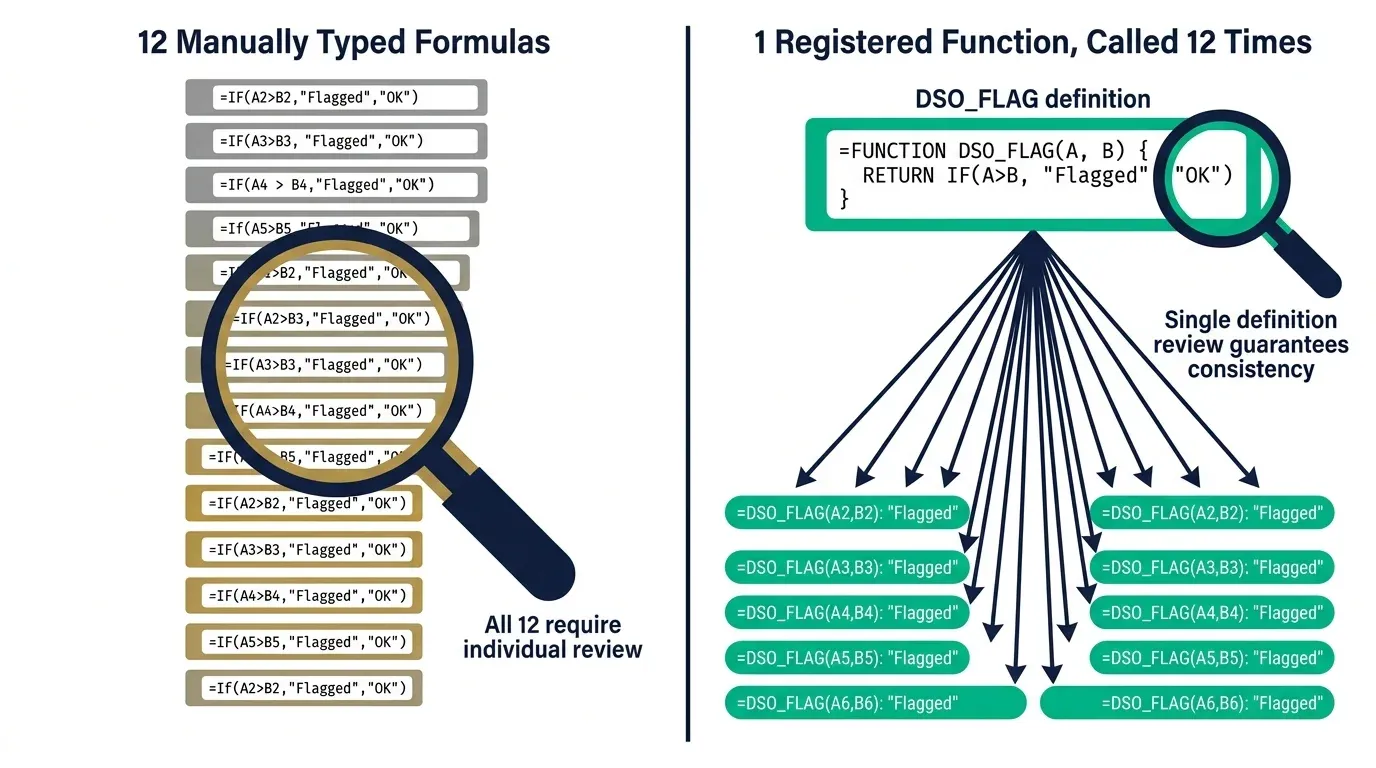
This is worth stating plainly: an external auditor reviewing twelve manually typed formulas has to check each one individually for internal consistency, same day-count assumption, same threshold, same cell reference pattern. A model built on one registered DSO_FLAG function only needs the function definition itself reviewed once; every cell calling it is guaranteed to use identical logic, because they're all calling the same underlying formula rather than twelve independently maintained copies of it. This is a genuine reduction in audit risk, not just a readability preference.
Three Mistakes That Break LET/LAMBDA-Based Models
Forgetting LET and LAMBDA both require Excel 365. Neither function is available in Excel 2019 or 2021 (LAMBDA specifically requires 365, even though LET reached 2021 first), on unsupported versions the formula returns a #NAME? error, exactly like the other functions covered throughout this cluster. Confirm version compatibility before building a LAMBDA-dependent model that gets shared outside your own machine.
Naming LET variables ambiguously. LET(x, ..., y, ..., ...) technically works but defeats the entire point, the readability benefit of LET comes specifically from using names that describe what the value actually represents (ar, dso, threshold), not single letters that need their own explanation.
Registering a LAMBDA function without documenting its argument order. Once DSO_FLAG is registered and used across dozens of cells, forgetting whether the third argument is days or threshold becomes a real risk. Add a comment in Name Manager, or maintain a small reference sheet listing every registered function's argument order, especially as a model accumulates more than two or three custom functions.
When LET/LAMBDA Isn't Enough
This approach genuinely replaces the specific class of VBA use case where someone was writing a custom function purely to encapsulate a repeated calculation, LAMBDA does that natively now, with no code editor and no macro-security prompts. It doesn't replace VBA for tasks that need to interact with the file system, other applications, or the Excel object model beyond formula calculation (event-driven macros, custom ribbon buttons, file automation), those remain genuinely VBA territory. For calculation-only reuse, though, LAMBDA is very often the better tool going forward.
If you want to build this level of formula architecture, LET, LAMBDA, and the full modern Excel toolkit, into your own models systematically, Build Advanced Excel Models the Easy Way covers this alongside Power Query and dynamic dashboards from the ground up.
Frequently Asked Questions
What's the actual difference between LET and LAMBDA?
LET names intermediate values inside a single formula for readability, it doesn't create anything reusable outside that one cell. LAMBDA goes a step further: it defines an entire calculation as a function with named input arguments, which can then be registered in Name Manager and called from any cell in the workbook, exactly like a built-in Excel function such as SUM or XLOOKUP.
Do I need to register a LAMBDA function to use it, or can I type it directly into a cell?
A LAMBDA formula typed directly into a cell will calculate immediately, but it only exists in that one cell, it isn't reusable elsewhere until it's registered as a named function via Name Manager. Registration is the step that turns it into something callable across the whole workbook.
Can LAMBDA functions call other LAMBDA functions?
Yes, a registered LAMBDA function can reference another registered LAMBDA function inside its own definition, which allows building genuinely modular calculation logic (a base ratio function used inside a more complex flagging function, for example) rather than one enormous single-function definition trying to do everything.
Does using LAMBDA replace the need for VBA entirely?
No, LAMBDA replaces the specific VBA use case of writing a custom function purely to encapsulate a repeated calculation. It doesn't replace VBA for tasks involving file automation, event-driven macros, interacting with other applications, or anything beyond pure calculation logic. For calculation-only custom functions, though, LAMBDA is now the better default over a VBA Function procedure.
What happens if I share a workbook with a registered LAMBDA function with someone on an older Excel version?
Since LAMBDA requires Excel 365, opening the workbook in an older version will show a #NAME? error wherever the function is called. If the workbook needs to be shared broadly across mixed Excel versions, either avoid LAMBDA-dependent formulas or clearly document the version requirement for recipients.
How is a LET/LAMBDA-based DSO calculation different from just using SUMIFS for the underlying figures?
They solve different problems and are typically used together, SUMIFS (or FILTER) aggregates the raw AR and credit sales figures from underlying transaction data, as covered in our SUMIFS for financial analysis guide, while LET and LAMBDA structure and reuse the calculation logic applied on top of those aggregated figures.
Conclusion: Named Once, Correct Everywhere
A calculation typed out twelve times isn't twelve correct formulas, it's twelve chances for one of them to drift from the other eleven. LET names the pieces of a formula so a reviewer can actually follow what it's doing. LAMBDA turns the calculation itself into a function, defined once and called everywhere it's needed, with the same guarantee of consistency a built-in Excel function already gives you.
Here's your action plan:
- Find the calculation in your current model that gets retyped most often, a ratio, a threshold check, a weighted figure, and refactor it with LET first, purely for readability.
- Once the LET version is correct, wrap it in LAMBDA with named arguments for anything that varies between uses (the threshold, the day-count assumption).
- Register the LAMBDA in Name Manager with a clear, descriptive name, and document its argument order somewhere visible.
- Replace every manually typed copy of the original calculation with a call to the new named function.
The audit benefit compounds with every cell that switches from a hand-typed formula to a function call, one definition to review, instead of however many copies happen to be scattered across the workbook.
Part of the FinDataPro Excel Formula Architecture Series.
Go Further
Build Advanced Excel Models the Easy Way
LET, LAMBDA, Power Query, and dynamic dashboards, covered from the ground up.
Enrol in the CoursePrashant Panchal is a Chartered Accountant (ACA) and Financial Modelling & Valuation Analyst (FMVA®) with 19 years of experience in finance, FP&A, and financial modelling across the GCC region. He is the founder of FinDataPro.
Discussion
Leave a Comment
Comments are moderated and appear once approved.